Guide
Pocket Calendars guide
Learn how to use Pocket Calendars, organize events and reminders, connect your calendars, and customize the app.
1. Get started with Pocket Calendars
You can use Pocket Calendars on iPhone, iPad, Android, and in your computer’s browser.
- Open Pocket Calendars or go to admin.pocketcalendars.app.
- Choose whether to use the app with or without an account.
- To create an account, sign in with Apple, Google, or email and password.
- Connect the calendars you already use.
- Choose your preferred view.
Without an account, your data stays on your device. With an account, you can access your calendars and reminders across your devices.
2. Choose how to view your schedule
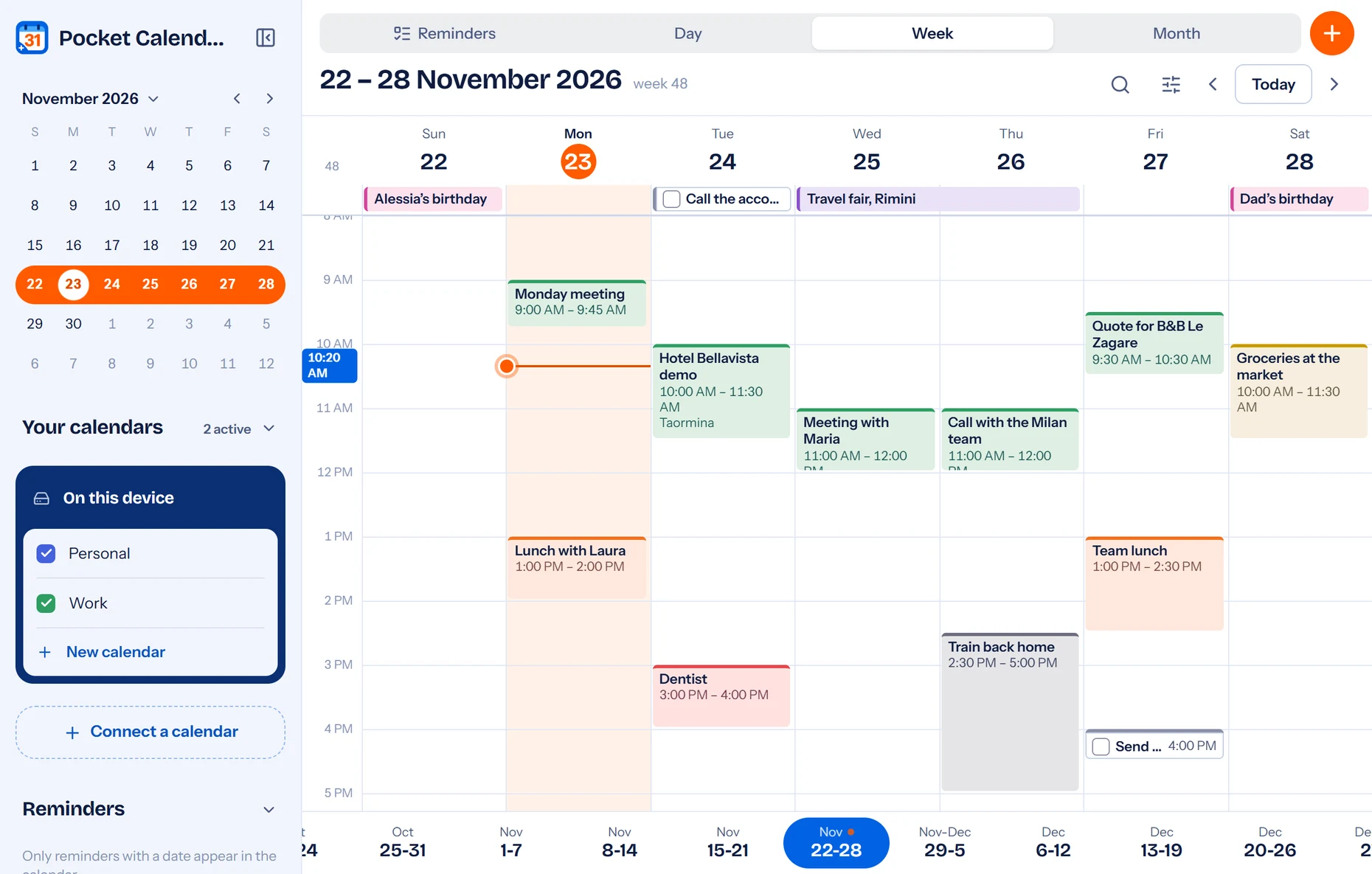
Pocket Calendars has four views, each with different display options.
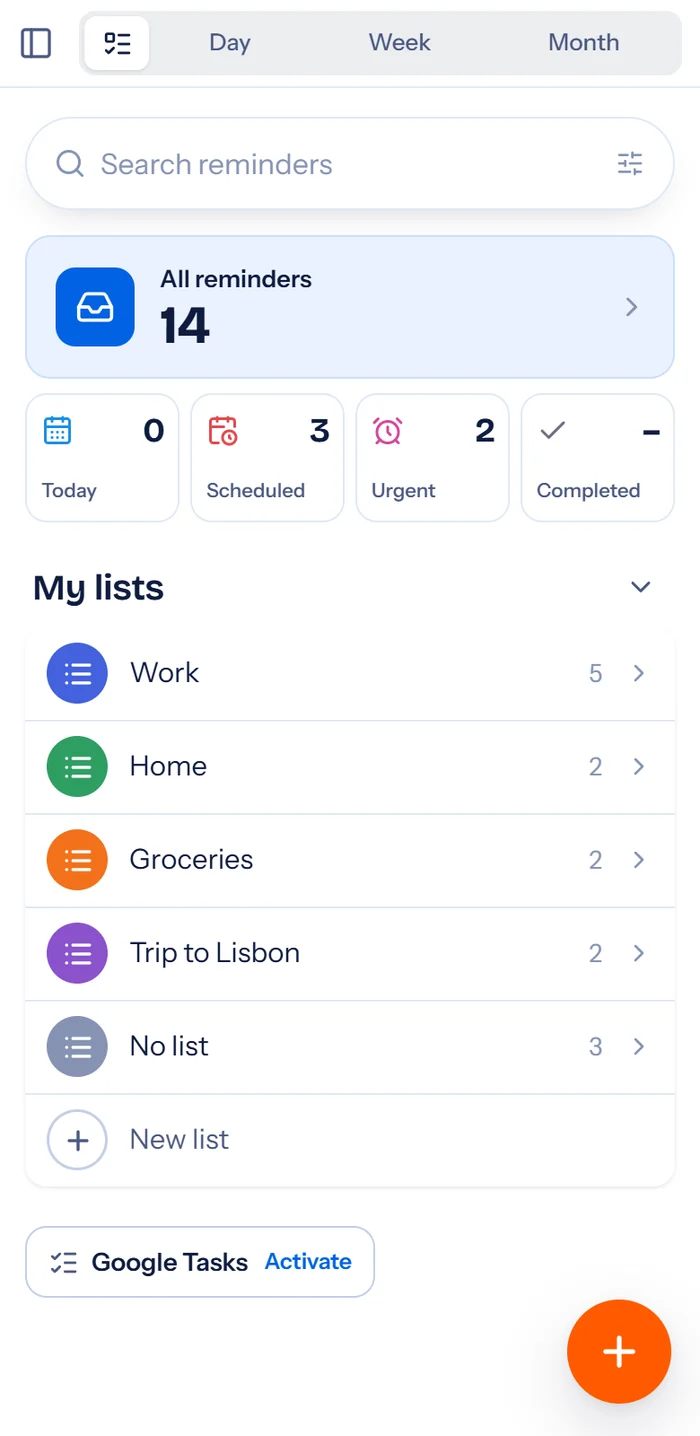
Reminders view
Organize your to-dos and browse your lists.
- Select “Reminders.”
- Choose a list or one of the tiles at the top.
- Use the search icon to find a reminder.
Day view
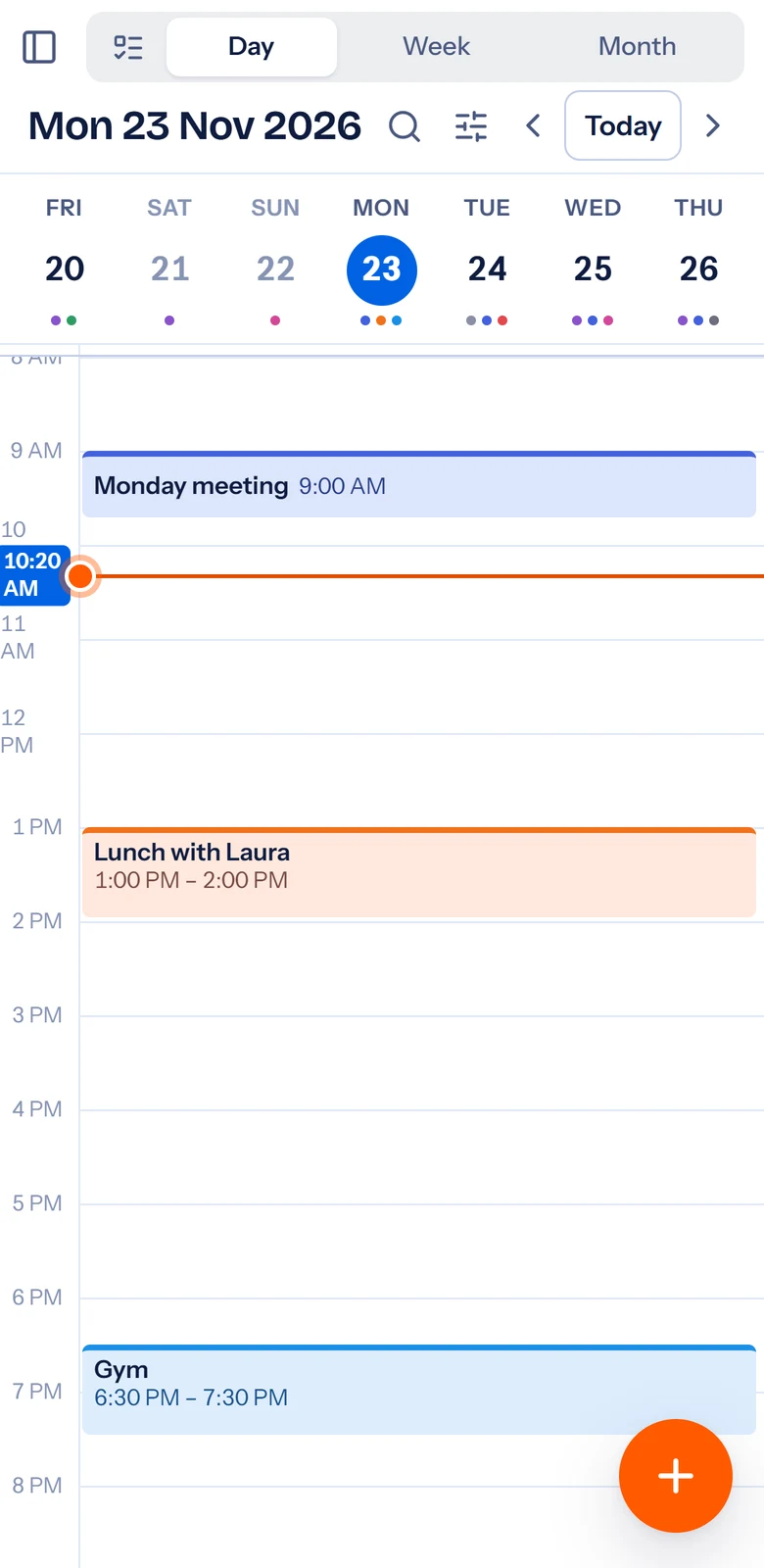
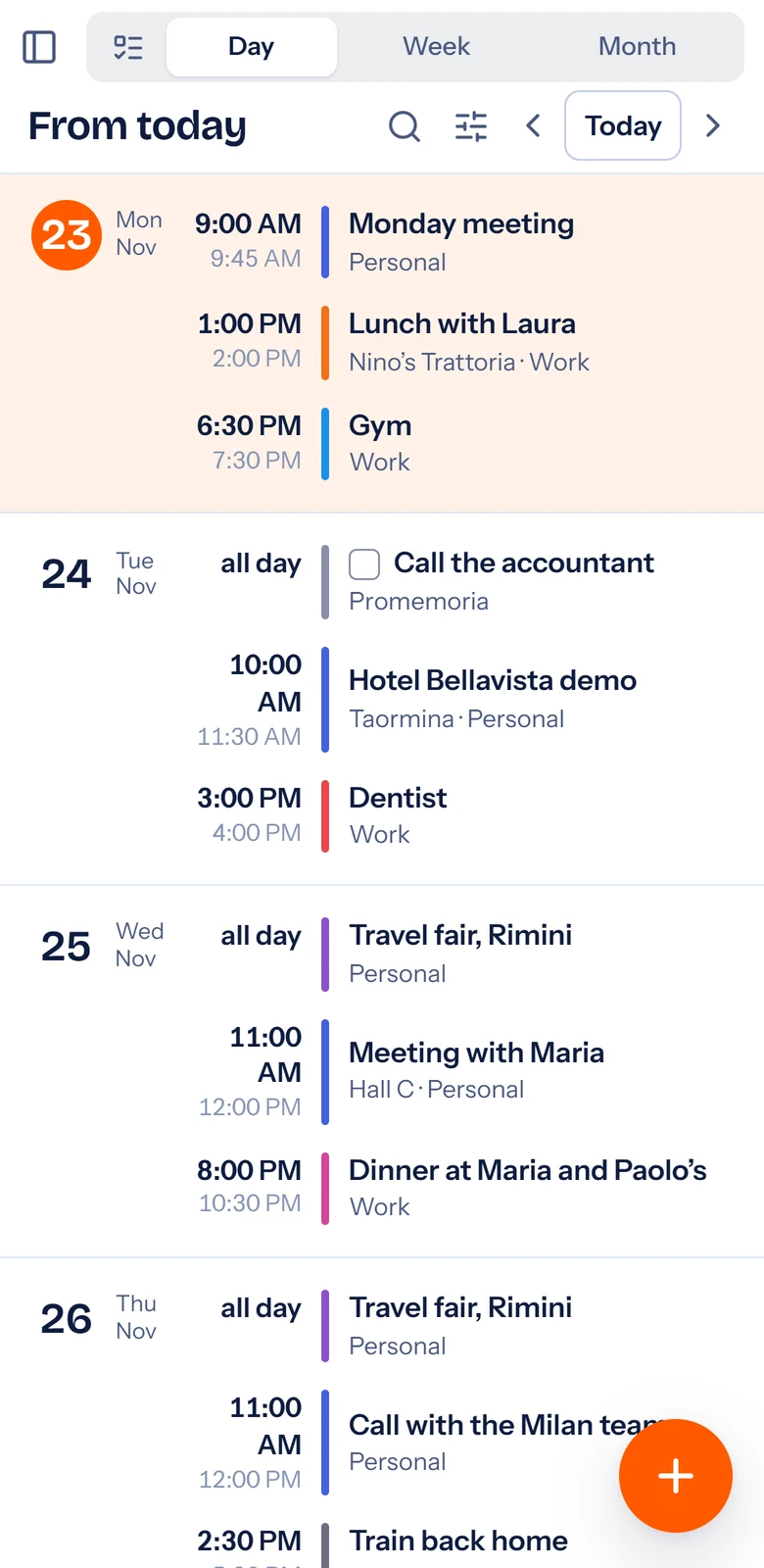
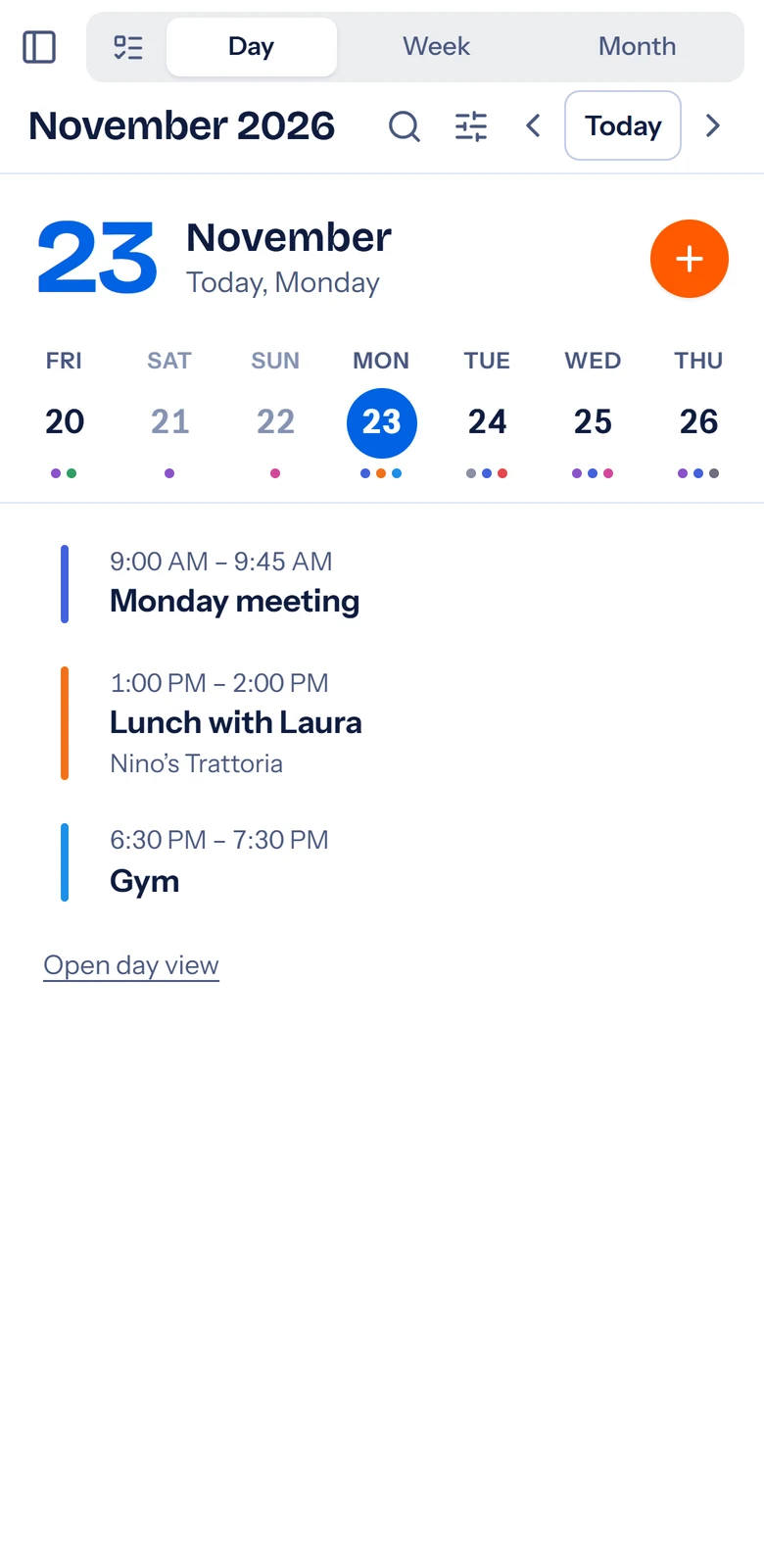
Choose how to view events for one or more days.
- Select “Day.”
- Tap the view options button next to the search icon.
- Choose one of the three available options.
- Single day
- View one day by the hour.
- List
- View events in a list, one below the other.
- Sequence
- View events in sequence.
Week view
View your week like a paper planner or by the hour.
- Select “Week.”
- Tap the view options button next to the search icon.
- Choose between one day per row and an hourly layout.
- Choose to show 3, 5, or 7 days.
- Turn on “Show available times” to see when you’re free between events.
Month view
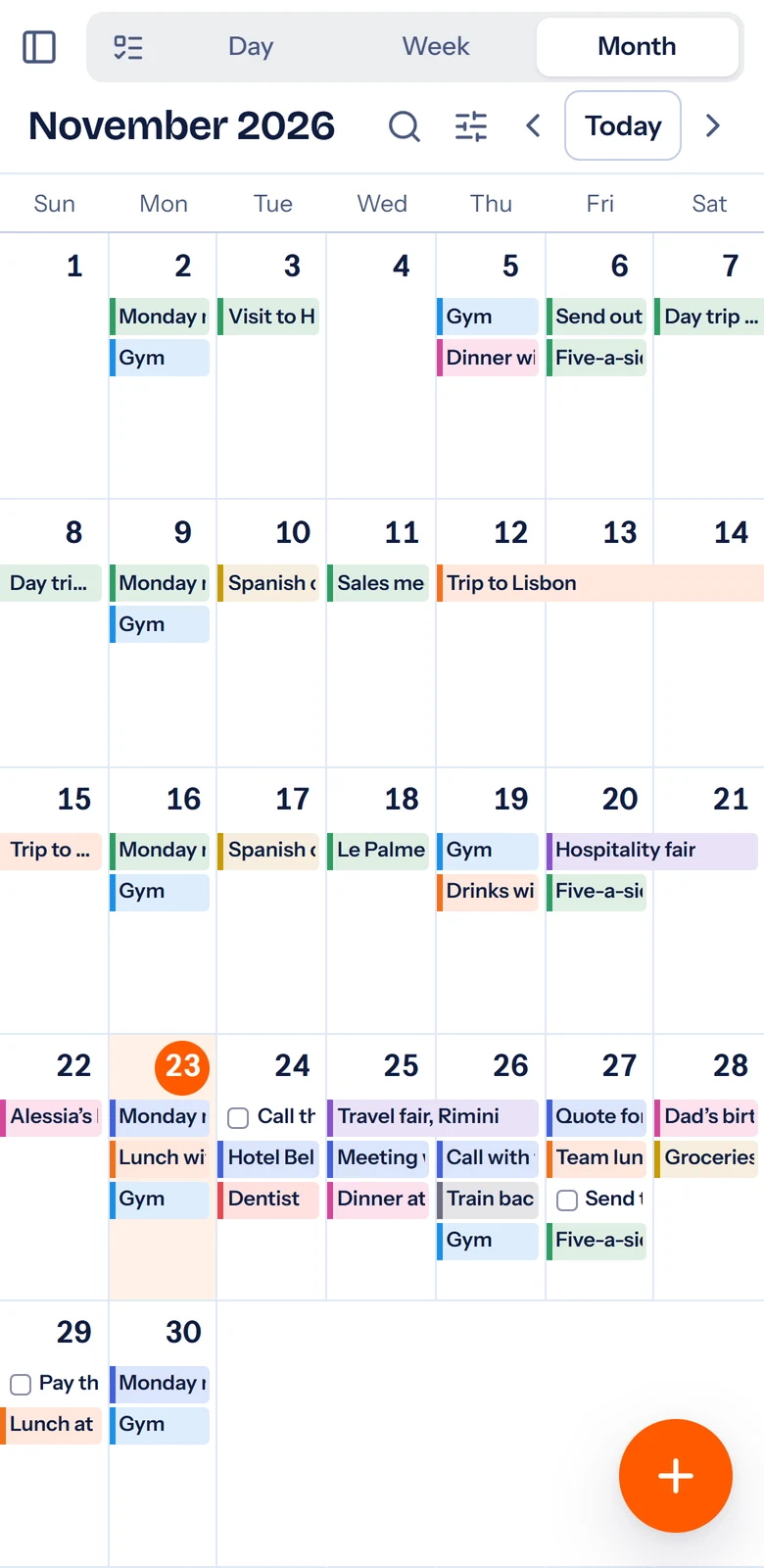
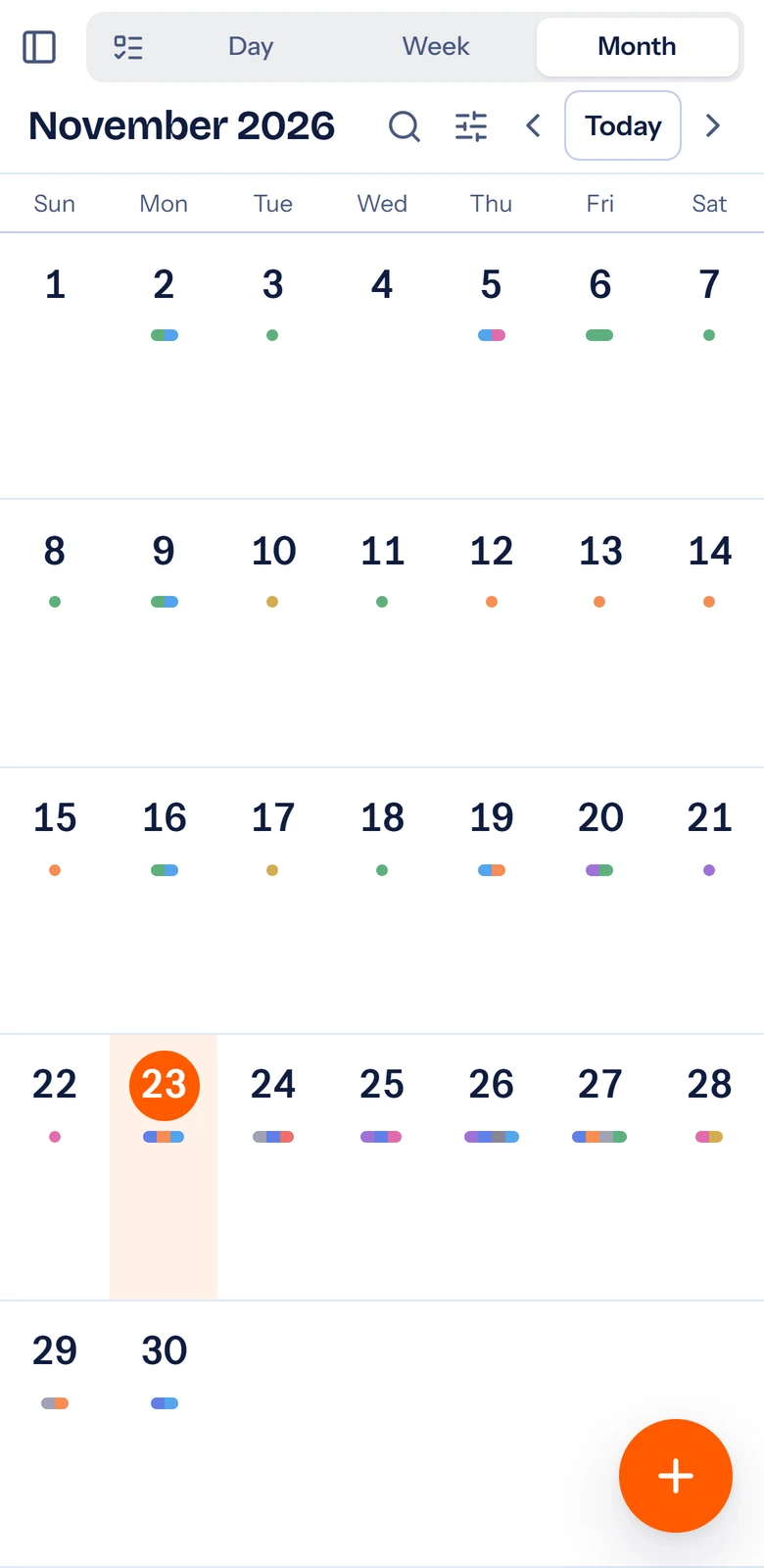
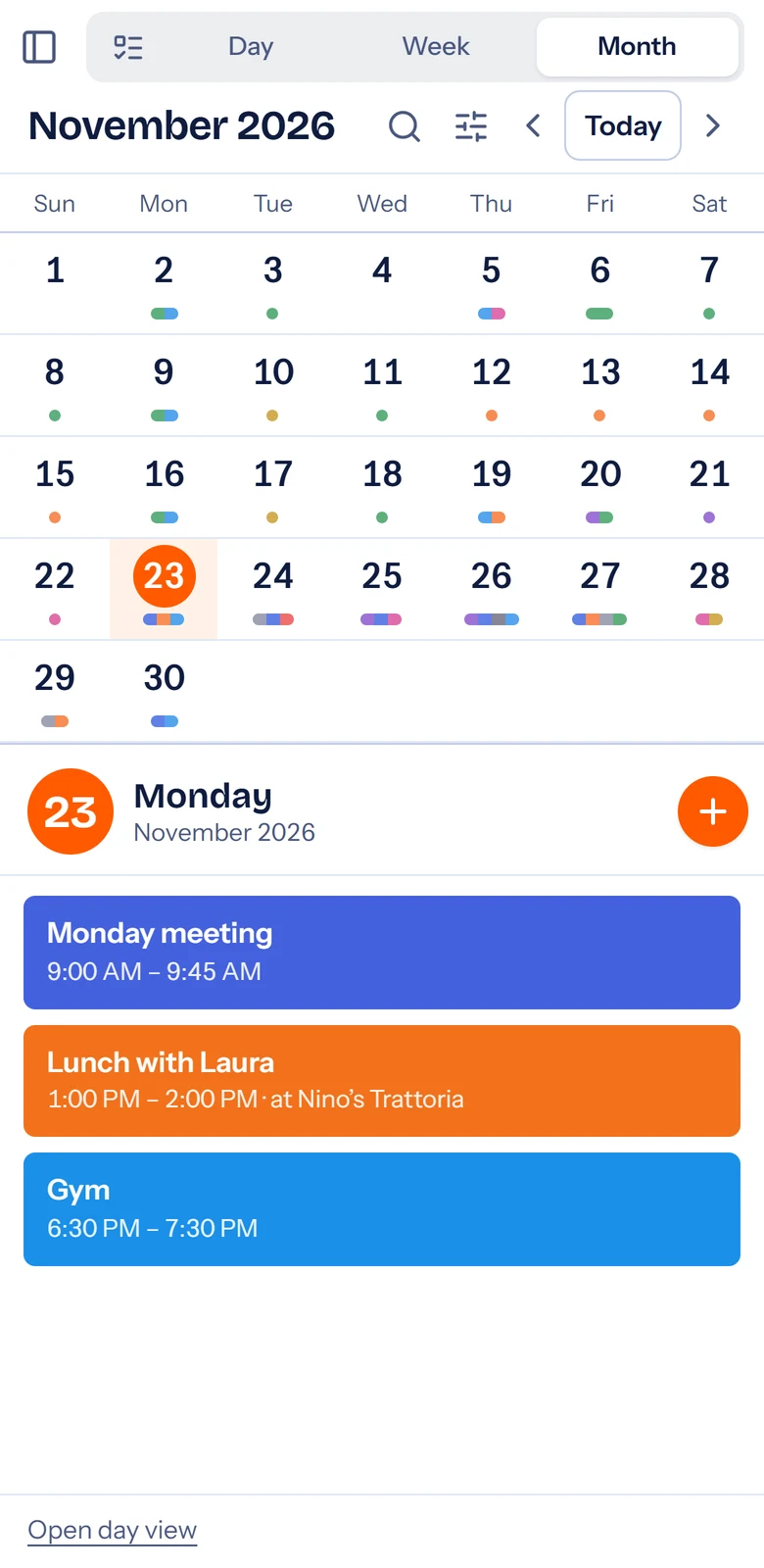
See your events for the entire month and choose how to display them.
- Select “Month.”
- Tap the view options button next to the search icon.
- Choose between Standard, Compact, List, and Sequence.
Navigate your calendar
Move between dates without switching views.
- On your phone, swipe right or left.
- Go to the previous or next day, week, or month.
- Tap the date at the top to return to today.
3. Create and manage events
Add an event
Add an event by filling in the fields or using quick entry.
- Tap the orange + button.
- Enter the event title.
- Select the date and time.
- Choose which calendar to add it to.
- Add any other details.
- Tap “Save.”
On iPad and foldable phones, the event form opens in the center of the screen.
Use quick entry
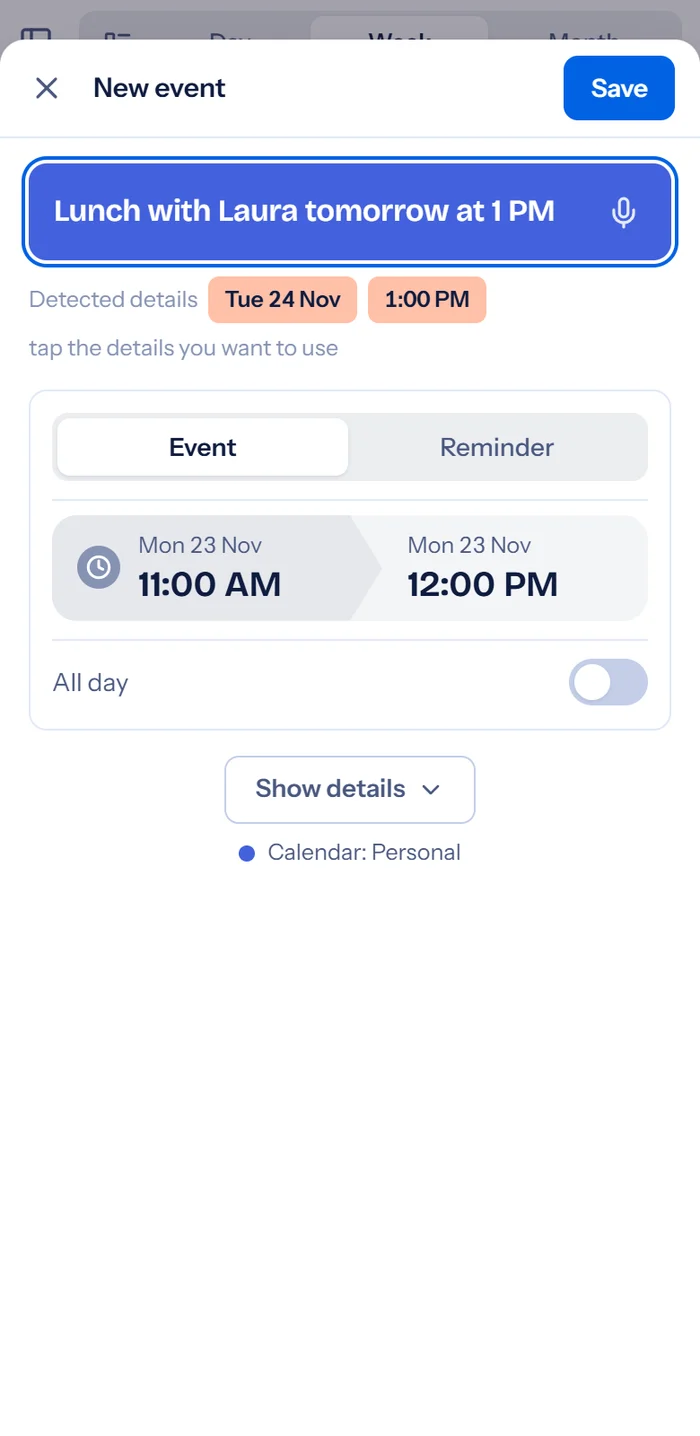
Enter the title, date, and time in a single sentence.
- Tap the + button.
- Type “Lunch with Laura tomorrow at 1 PM.”
- Tap the suggested date and time to use them.
- Tap “Save.”
Dictate an event
Use the microphone instead of typing.
- Tap the + button.
- Tap the microphone.
- Say what event you want to add.
- Check the event details.
- Tap “Save.”
Create a recurring event
Set events to repeat on a regular schedule.
- Open the event form.
- Select the repeat option.
- Choose to repeat daily, weekly, monthly, or yearly.
- For other schedules, set a custom recurrence.
- Tap “Save.”
For example, you can create events that repeat every two weeks or on the first Tuesday of each month.
Add more details
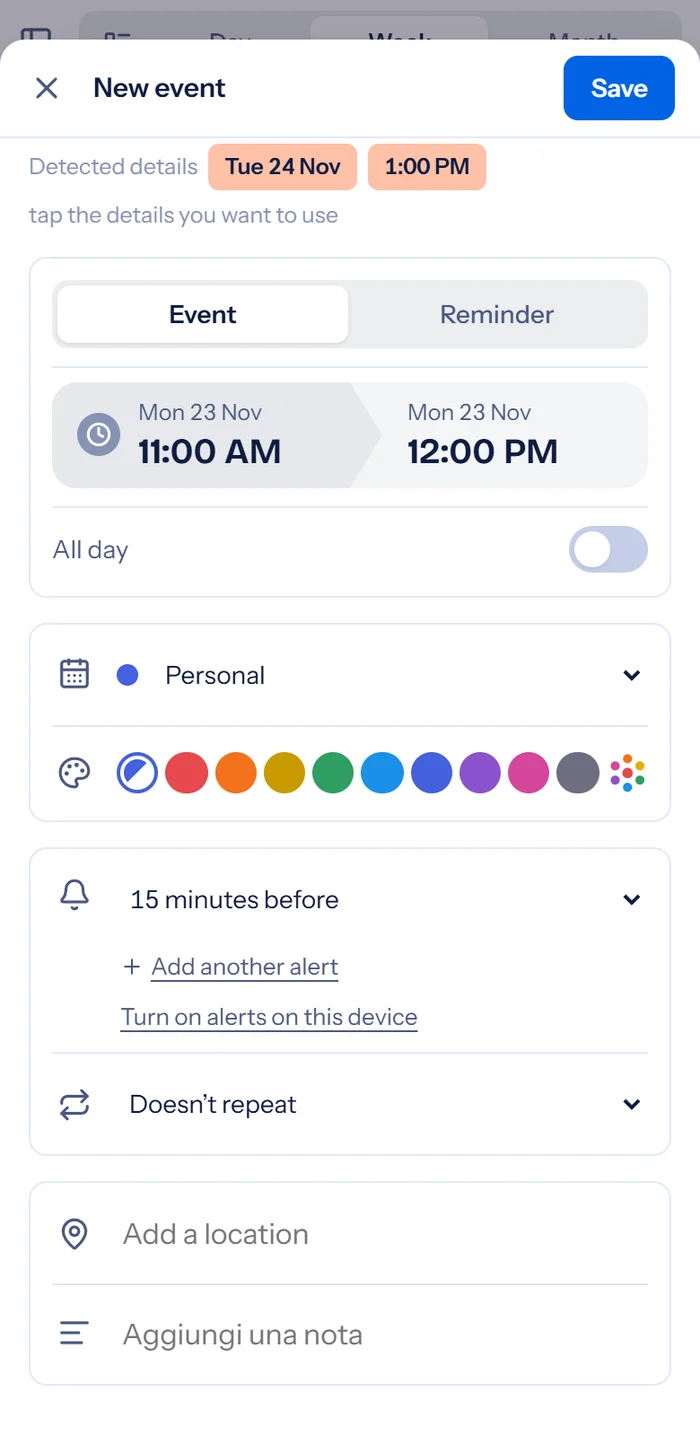
Add the information you need to each event.
- Open the event form.
- Turn on “All day” if you don’t want to set a time.
- Set alerts to receive a notification before the event.
- Add a location, invitees, and notes.
- Choose the calendar and color.
- Tap “Save.”
If you’ve added a location, you can open it directly in Maps.
4. Organize reminders and tasks
Create a list
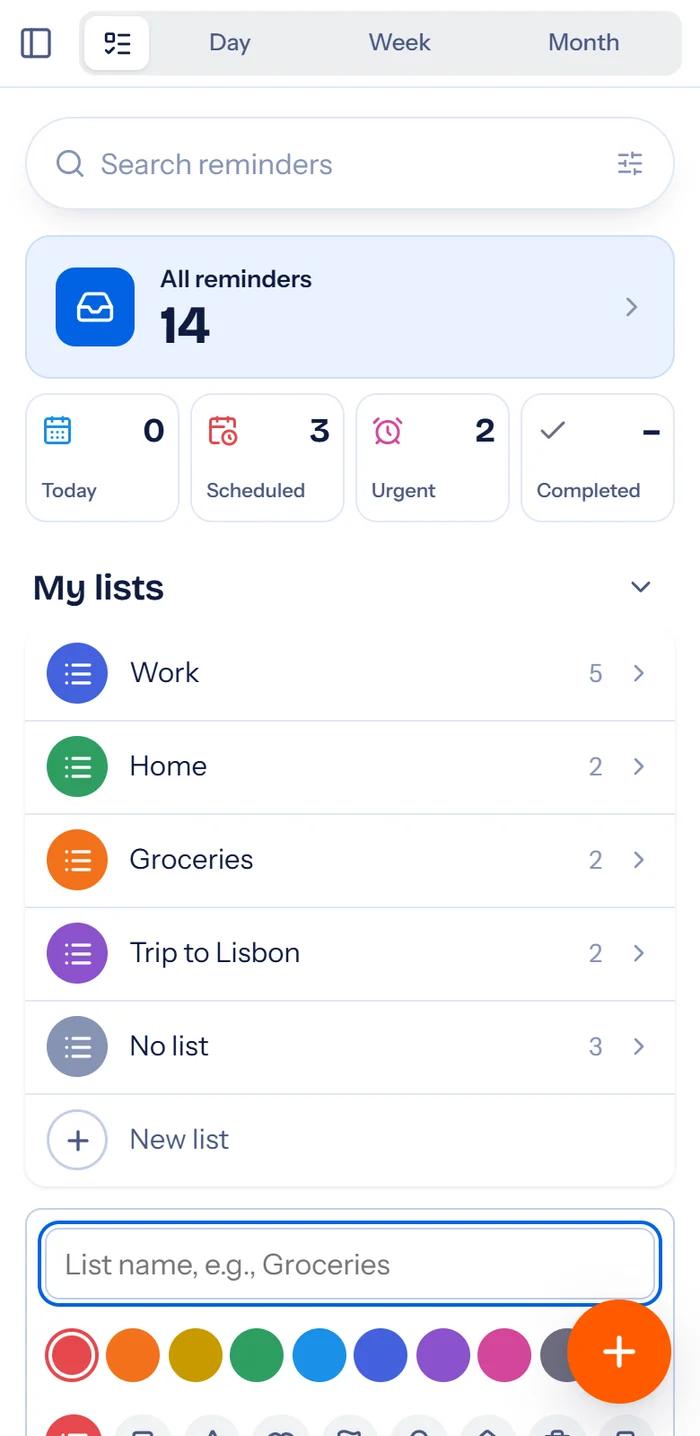
Group reminders into lists, such as Home, Work, or Groceries.
- Open the Reminders page.
- Select the option to create a list.
- Enter a name.
- Choose a color.
Add a reminder
Create a reminder and add the details you need.
- Open the Reminders page.
- Add a new reminder.
- Enter the title.
- Set a due date, with or without a time.
- Turn on “Urgent” if needed.
- Save the reminder.
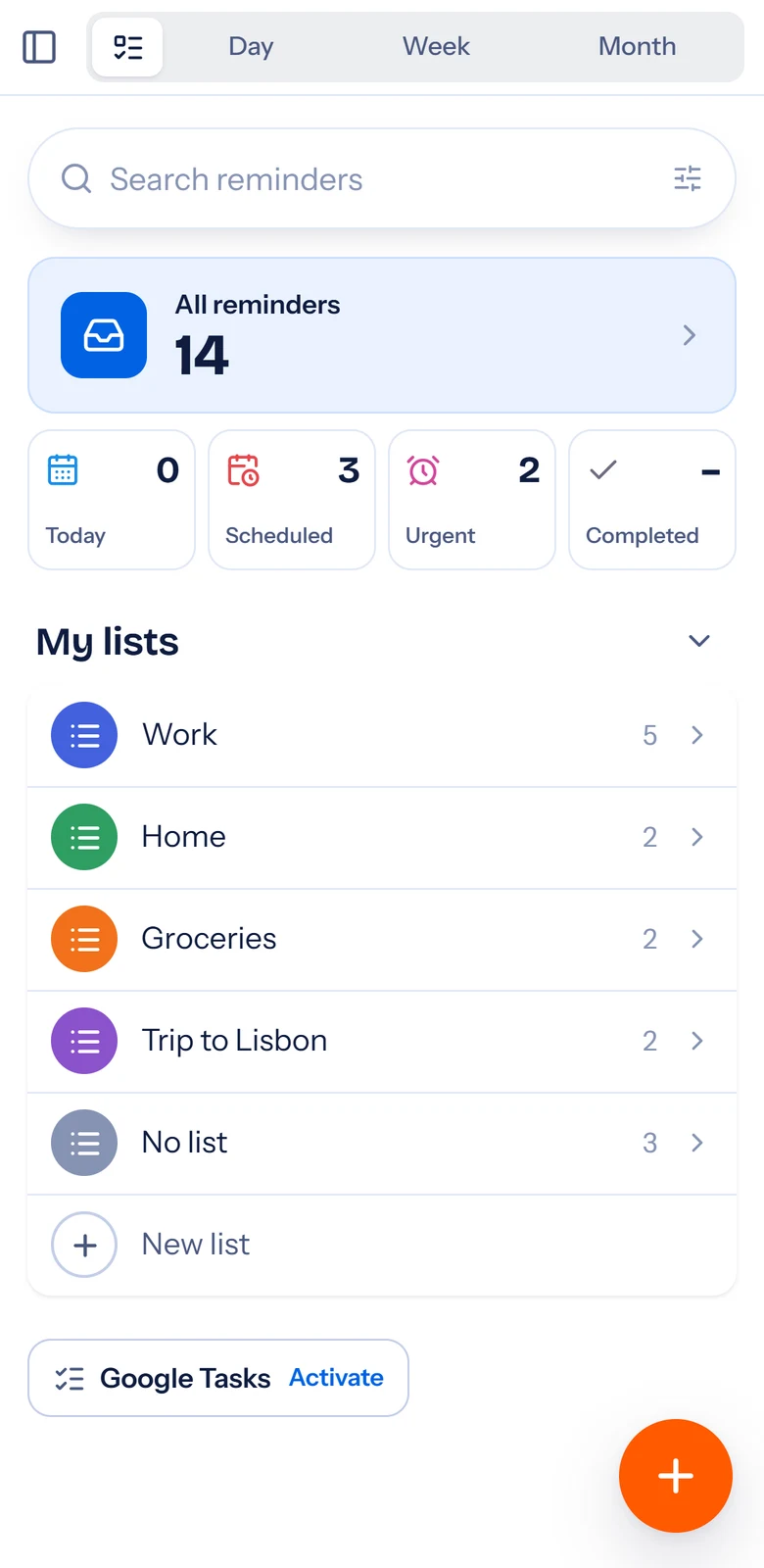
Browse your reminders
Use the tiles at the top to find the reminders you need.
- Open the Reminders page.
- Select one of the available tiles.
- Use the search icon to find a reminder.
- All
- All your reminders.
- Today
- Today’s reminders.
- Scheduled
- Reminders with a date.
- Urgent
- Reminders marked as urgent.
- Completed
- Reminders you’ve already completed.
On your phone, return to your lists by swiping in from the left edge or tapping the Reminders icon again.
Create subtasks
Break a reminder into smaller tasks.
- Create the main reminder.
- Add another reminder below it.
- Swipe the row to the right to indent it.
- Repeat to add more subtasks.
Reorder, move, and complete reminders
Change the order of your reminders and move them between lists.
- Drag a reminder to change its position.
- Open the three-dot menu to move it to another list.
- Choose the list to move it to.
- Check off the reminder when you’re done.
Show reminders in your calendar
Reminders with a date can appear alongside your events.
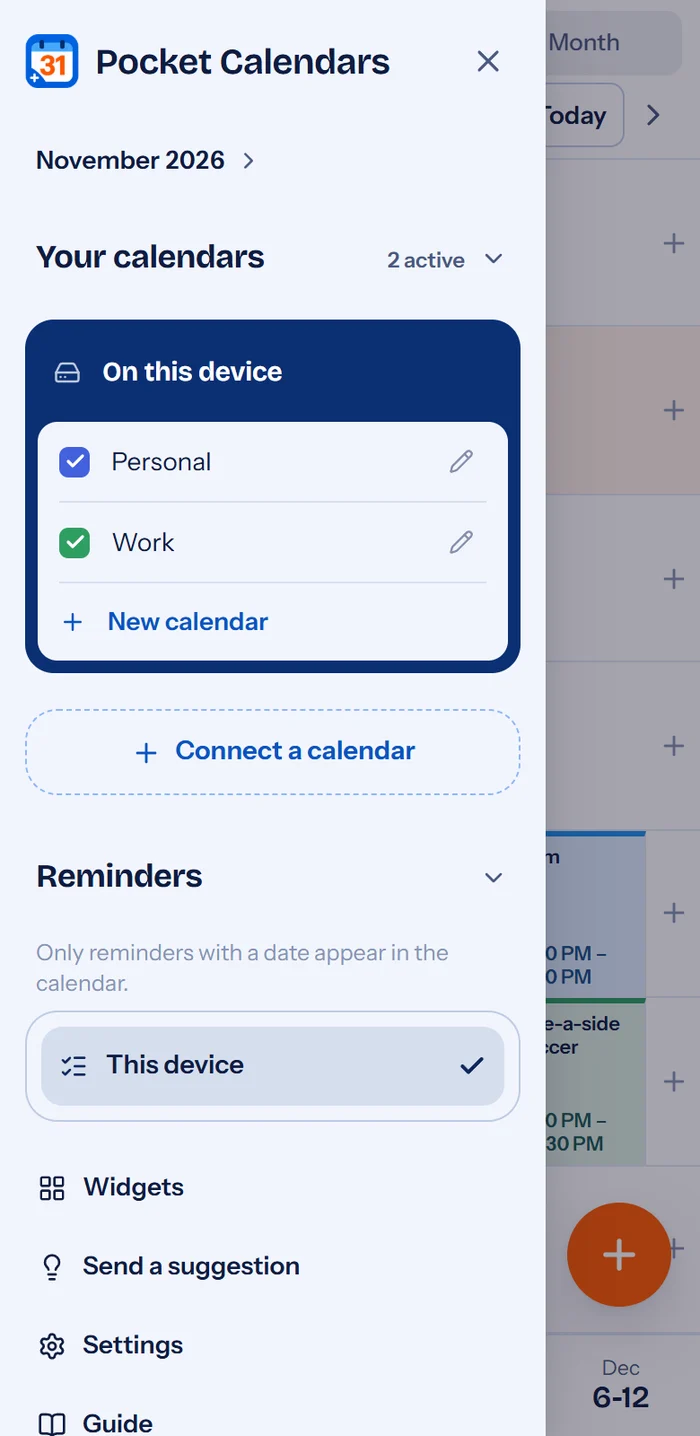
- Open the Manage sidebar.
- Find the reminders section.
- Select the lists you want to show in your calendar.
- Uncheck the lists you want to hide.
Your reminders are always available on the Reminders page, even when hidden from the calendar.
Sync reminders with Apple
Sync Pocket Calendars with Apple Reminders, including your iCloud reminders.
- Open Pocket Calendars on your iPhone.
- Go to the Reminders page.
- Turn on sync with Apple Reminders.
- Allow access to your reminders.
Changes sync across both apps.
Sync reminders with Google Tasks
Manage your Google tasks directly in Pocket Calendars.
- Open the Reminders page.
- Select the option to turn on Google Tasks.
- Connect your Google account if needed.
- Turn on sync.
Your reminders will appear in both apps.
5. Use the Manage sidebar
The Manage sidebar gives you access to your calendars, settings, and account.
- On your phone, tap the button in the upper-left corner.
- On your computer, use the sidebar on the left.
- Select a date in the mini calendar to jump to another day.
- Check or uncheck calendars and reminder lists to show or hide them.
- Open “Widgets,” “Settings,” or “Send a suggestion.”
- Tap your name at the bottom of the sidebar to manage your account and plan.
On your computer, collapse the sidebar to make more room for your calendar and expand it when needed.
6. Connect your calendars
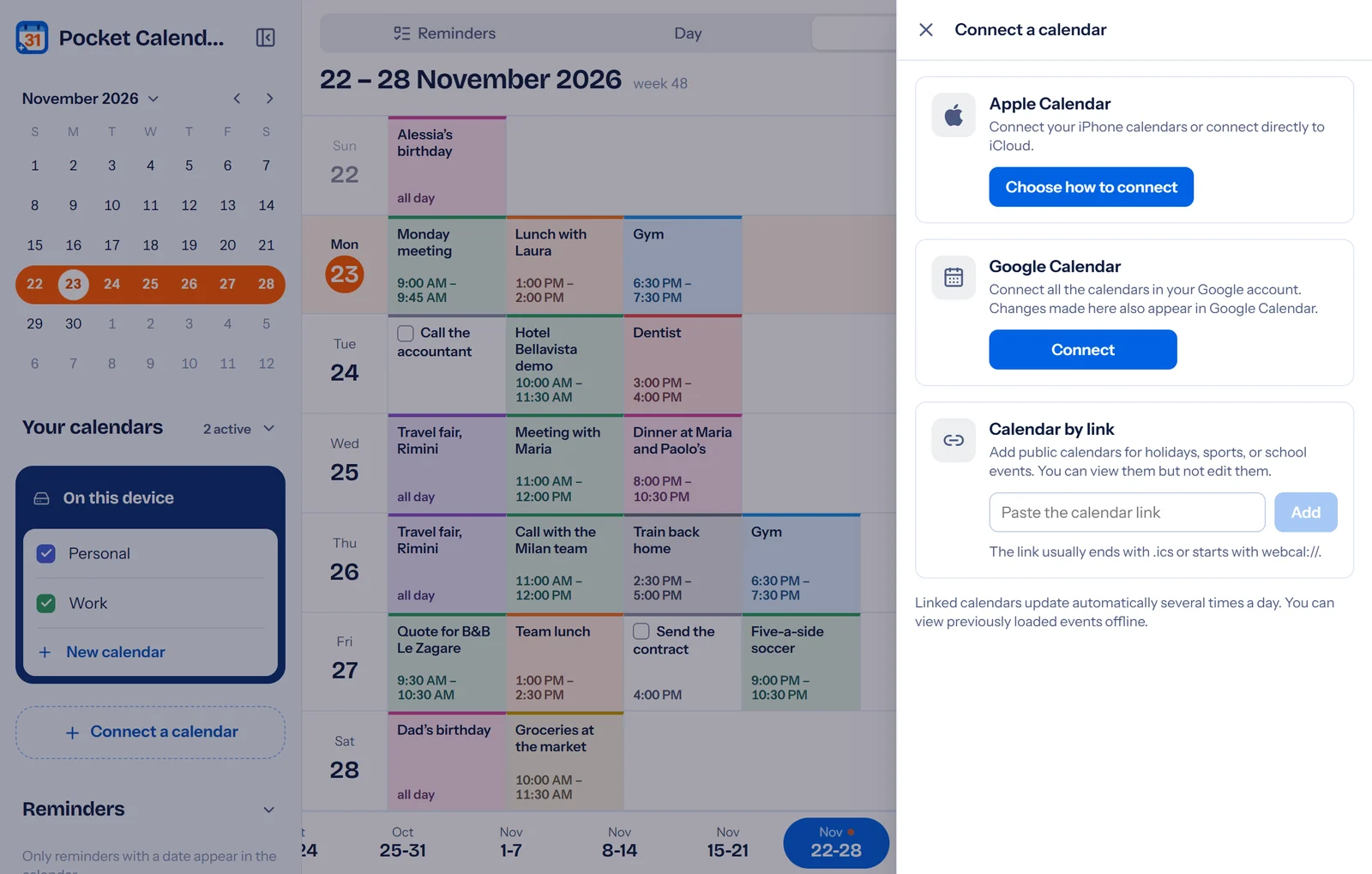
View your device calendars, Google calendars, and calendars added by link in one place.
Connect Google Calendar
View and edit your Google Calendar events directly in Pocket Calendars.
- Open the Manage sidebar.
- Select “Connect a calendar.”
- Choose Google Calendar.
- Sign in to your Google account.
- Allow access.
- Select the calendars you want to show.
Connect your iPhone calendars
View the calendars on your iPhone, including iCloud calendars.
- Open Pocket Calendars on your iPhone.
- Open the Manage sidebar.
- Select “Connect a calendar.”
- Choose your device calendars.
- Allow access.
- Select the calendars you want to show.
iPhone calendars are read-only. You can view them in Pocket Calendars but cannot edit them.
Add a calendar by link
Add calendars published through iCal links, such as holidays or sports events.
- Copy the calendar link.
- Open the Manage sidebar.
- Select “Connect a calendar.”
- Choose the option to add a calendar by link.
- Paste the link and add the calendar.
You can view events from these calendars but cannot edit them.
Show or hide a calendar
Choose which calendars to show without disconnecting them.
- Open the Manage sidebar.
- Go to “Your calendars.”
- Check the calendars you want to show.
- Uncheck the ones you want to hide.
7. Use widgets
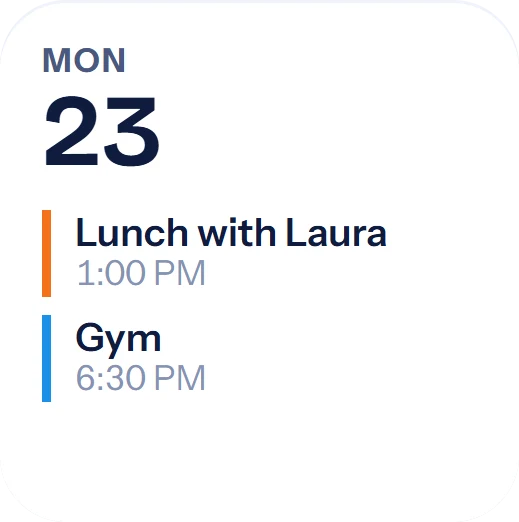
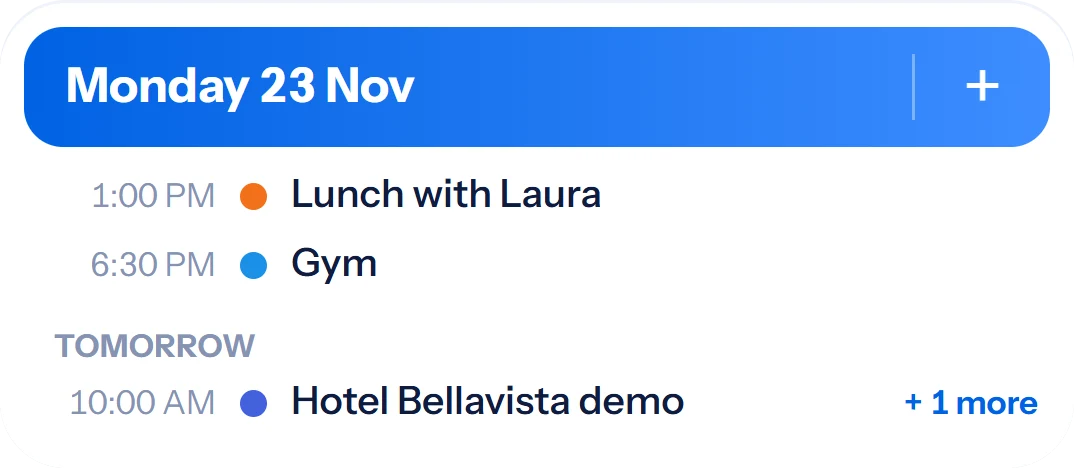
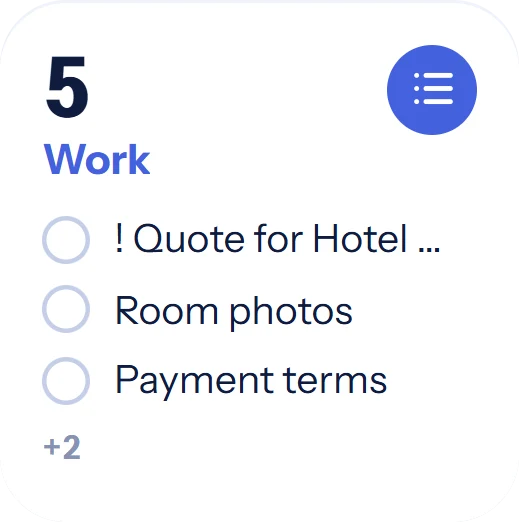
Widgets let you check your events and reminders without opening the app.
Add a widget
Choose from different widget sizes on your phone.
- Touch and hold an empty spot on your Home Screen.
- Open the widget list.
- Search for Pocket Calendars.
- Choose your preferred widget and size.
- Add it to your Home Screen.
Choose your preferred widget
On iPhone, you can choose from several widgets to check your schedule.
- Open the Manage sidebar.
- Select “Widgets.”
- Browse the available widgets.
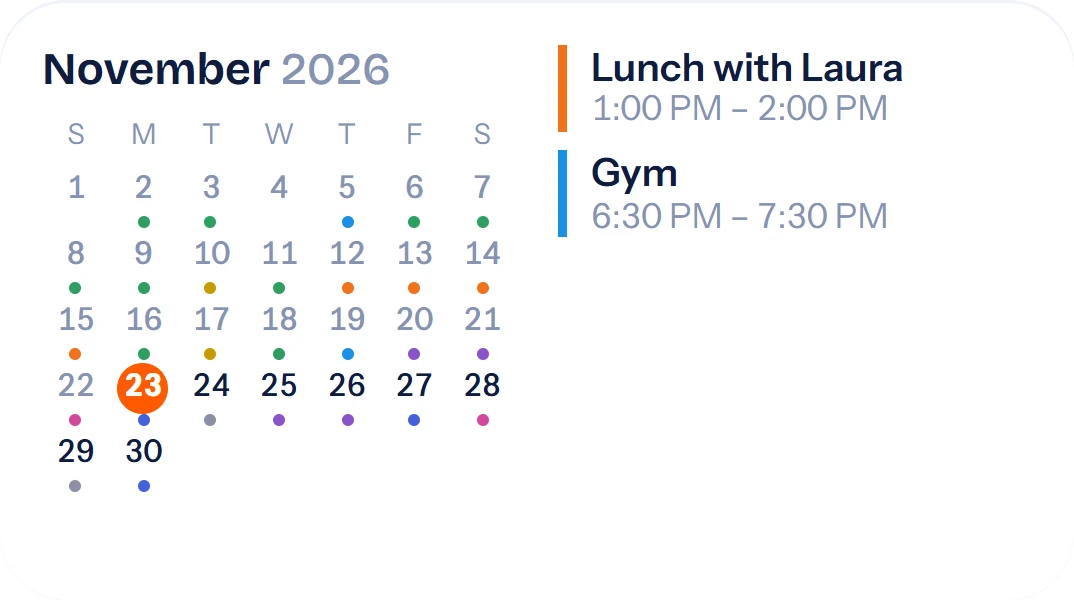
- Month
- The monthly calendar.
- Coming soon
- Your upcoming events.
- Today and reminders
- Today’s events and your reminders.
- Agenda
- Your events.
- Reminders
- Your to-dos.
On iPhone, you can also add widgets to your Lock Screen.
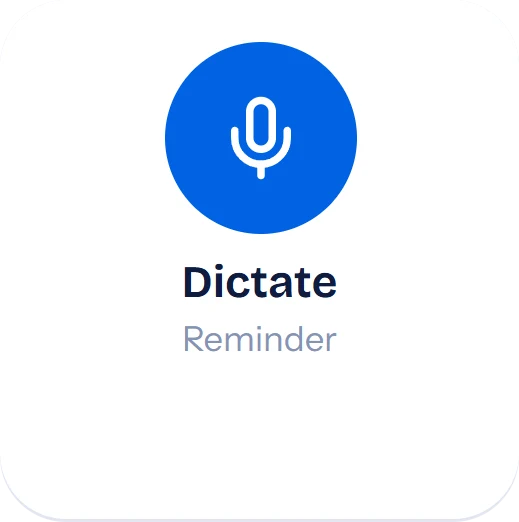
Use the microphone widget
Use your voice to add an event or a reminder.
- Add the microphone widget to your iPhone.
- Tap the microphone.
- Say what event or reminder you want to add.
8. Customize Pocket Calendars
In Settings, you can choose how the app looks and works.
Choose your starting view
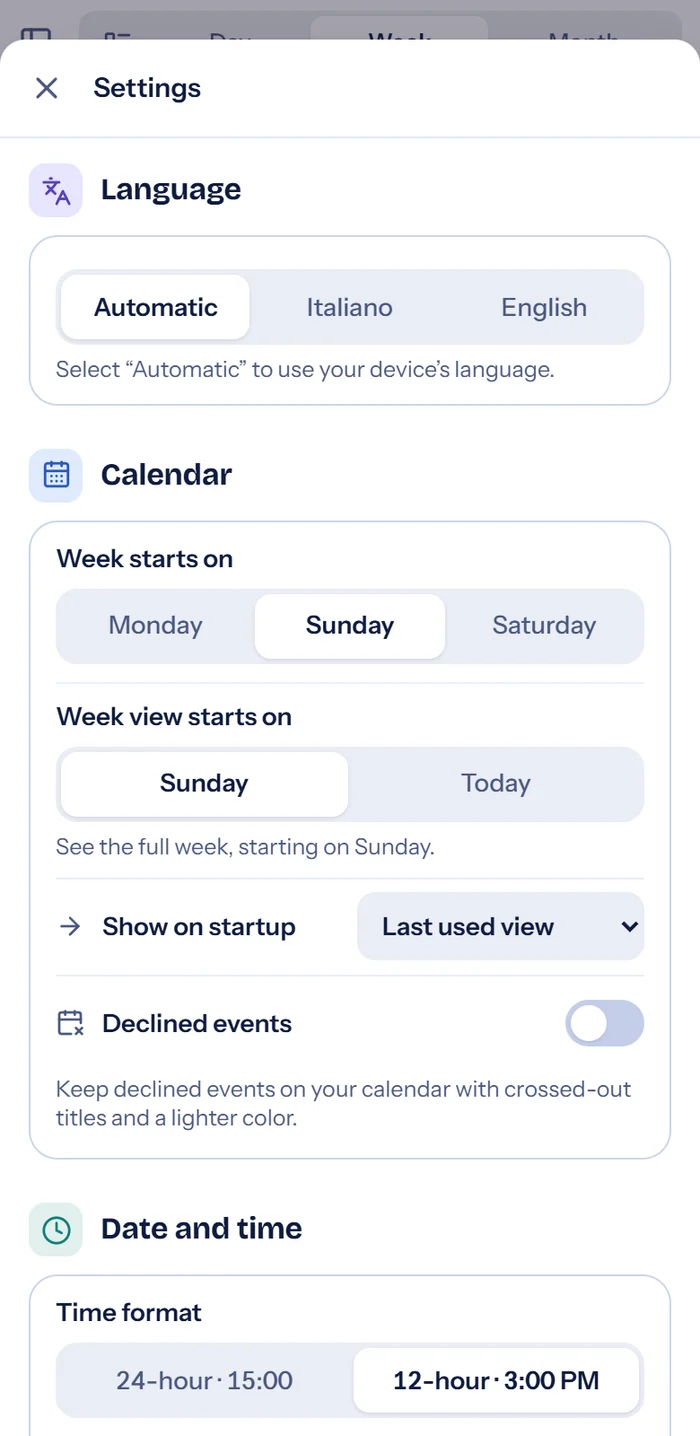
Choose which view appears each time you open Pocket Calendars.
- Open the Manage sidebar.
- Select “Settings.”
- Find the “Show on startup” option.
- Choose your preferred view.
Customize your calendar’s appearance
Choose your colors, theme, and text size.
- Open “Settings.”
- Choose a light, dark, or automatic theme.
- Customize your colors.
- Choose from five text sizes.
- Set the first day of the week.
The text size applies to days, events, and reminders in all calendar views.
Set your default calendar and alerts
Choose which calendar to use for new events and customize your alerts.
- Open “Settings.”
- Select your default calendar.
- Set your alert preferences.
9. Sync your devices
Use the same account to access your calendars and reminders on your phone, tablet, and computer.
- Create an account or sign in to Pocket Calendars.
- Open Pocket Calendars on another device.
- Sign in with the same account.
- Access your calendars and reminders.
Changes sync across your devices in near real time.
Sync your data manually
You can start a sync manually from your account page.
- Open the Manage sidebar.
- Tap your name at the bottom of the sidebar.
- Select “Sync now.”
Use Pocket Calendars offline
Keep using the app even without an internet connection.
- Open Pocket Calendars.
- Check your schedule and add or edit events and reminders.
- Your changes sync when you’re back online.
10. Choose and manage your plan
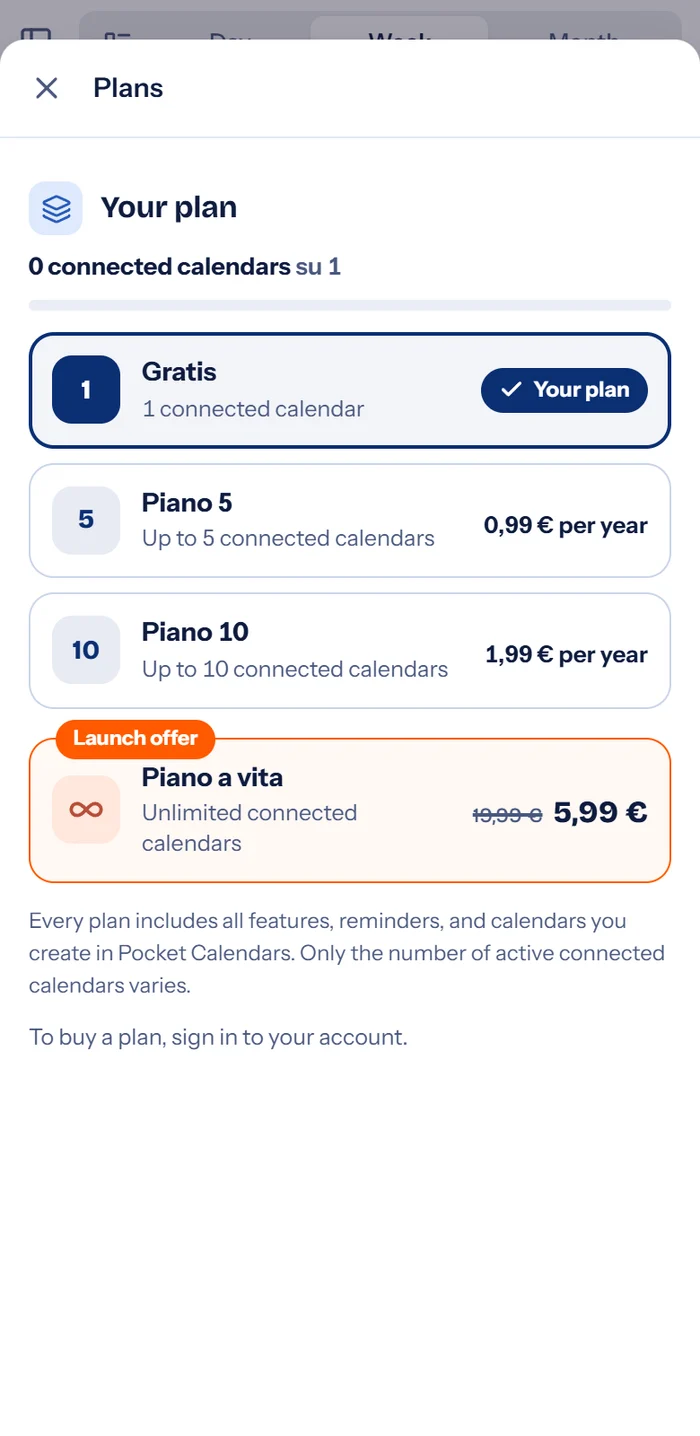
Every plan includes all features. The only difference is how many connected calendars you can keep active.
| Plan | Active connected calendars | Duration |
|---|---|---|
| Free | 1 | Free |
| Plan 5 | Up to 5 | Annual |
| Plan 10 | Up to 10 | Annual |
| Lifetime plan | Unlimited | One-time purchase |
The limit applies to calendars connected from Google, your device, and calendar links.
There’s no limit to the number of reminders or calendars you create in Pocket Calendars.
Buy a plan on iPhone
You can buy a plan using your Apple Account.
- Open the Manage sidebar.
- Tap your account.
- Scroll down to “Your plan.”
- Choose your preferred plan.
- Confirm your purchase through Apple.
Buy a plan in your browser
You can buy a plan by paying with a card through Stripe.
- Go to admin.pocketcalendars.app.
- Sign in to your account.
- Open “Your account” and scroll down to “Your plan.”
- Choose your preferred plan.
- Complete your card payment.
Manage your subscription
Manage your plan renewal from “Your account.”
- Open “Your account” and scroll down to “Your plan.”
- Select “Manage subscription.”
- Manage your subscription or turn off automatic renewal.
The lifetime plan requires a one-time payment and never renews.
Restore a purchase
If you’ve already bought a plan through Apple, you can restore it in the iPhone app.
- Open Pocket Calendars on your iPhone.
- Open “Your account” and scroll down to “Your plan.”
- Tap “Restore purchases.”
Redeem a gift code
If you’ve received a gift code, use it to activate the associated plan.
On iPhone, for Apple codes
- Open “Your account” and scroll down to “Your plan.”
- Tap “Redeem a code.”
- Enter the code in the Apple redemption window.
In your browser, for Pocket Calendars gift codes
- Sign in to Pocket Calendars in your browser.
- Open “Your account.”
- Enter your gift code.
- Tap “Activate.”
Your purchased or activated plan applies to all devices using the same Pocket Calendars account.
11. Manage your account
From your account page, you can check your current plan, manage your sign-in method, and start a sync.
View your account details
Access your account details from the Manage sidebar.
- Open the Manage sidebar.
- Tap your name at the bottom of the sidebar.
- Check your current plan and sign-in method.
Change your sign-in method
Each account has one sign-in method. Choose between Google, Apple, or email and password.
- Open “Your account.”
- Under “Sign-in,” tap “Change sign-in method.”
- Choose the new method and sign in to confirm.
To switch to Google or Apple, use an account with the same email address as your Pocket Calendars account.
Change your password
If you sign in with email and password, you can change your password anytime.
- Open “Your account.”
- Under “Sign-in,” tap “Change password.”
- Enter your current and new passwords, then tap “Save password.”
If you don’t remember your current password, tap “Forgot your password?” You’ll receive an email with a link to choose a new one.
Sign out of your account
You can sign out without deleting the data on your device.
- Open “Your account.”
- Select “Sign out.”
Your data remains on this device.
Delete your account
You can request account deletion directly from the app.
- Open “Your account.”
- Select “Delete account.”
- Follow the on-screen instructions.
12. Contact us
If you need help or want to suggest an improvement, you can contact us directly.
- Open the Manage sidebar.
- Select “Send a suggestion.”
You can also email us at info@pocketcalendars.app.
To learn how your data is handled, read our privacy policy.
Frequently asked questions
Which devices can I use Pocket Calendars on?
You can use Pocket Calendars on iPhone, iPad, Android, and in your browser. To use it on your computer, go to admin.pocketcalendars.app.
Do I need an account to use Pocket Calendars?
No. You can use the app without an account, but your data stays on your device. With an account, you can sync your data across multiple devices.
How do I access my events on another device?
Sign in to Pocket Calendars with the same account on both devices. You can also sync manually by selecting “Sync now” on your account page.
Does Pocket Calendars work offline?
Yes. You can keep using the app without an internet connection. Your changes sync when you’re back online.
Which calendars can I connect?
You can connect Google Calendar, iPhone calendars, including iCloud calendars, and calendars using iCal links.
Can I edit Google Calendar and iCloud events?
You can create and edit Google Calendar events directly in Pocket Calendars. iCloud calendars are available in read-only mode through the iPhone app.
Can I connect Outlook?
Not yet. Connecting to Microsoft Outlook is not currently available.
Can I sync my existing reminders and tasks?
Yes. You can sync them with Google Tasks and, from the iPhone app, with Apple Reminders, including iCloud reminders.
How do I show reminders in my calendar?
Open the Manage sidebar and select the reminder lists you want to show. Only reminders with a date appear in the calendar.
Can I choose which view appears on startup?
Yes. Open Settings and choose which view you want to see when you open Pocket Calendars.
Can I create recurring events?
Yes. You can set events to repeat daily, weekly, monthly, yearly, or at custom intervals, such as every two weeks.
Can I add events and reminders using my voice?
Yes. Use the microphone to dictate your events and reminders. A microphone widget is also available on iPhone.
What’s the difference between free and paid plans?
Every plan includes all features. The only difference is how many connected calendars you can keep active. Reminders and calendars created in Pocket Calendars are always unlimited.
Do I need to buy a plan for each device?
No. Your plan applies to every device where you sign in with the same Pocket Calendars account.
How do I cancel my subscription?
Open “Your account,” scroll down to “Your plan,” and select “Manage subscription” to turn off automatic renewal. If you bought the lifetime plan, there’s nothing to cancel because it never renews.