Works offline, too
Keep using your calendar without an internet connection. Calendar changes sync when you’re back online.
Coming soon to the App Store.
All your events and reminders in one place. Choose how to view your days and organize your schedule from your phone, tablet, or computer.
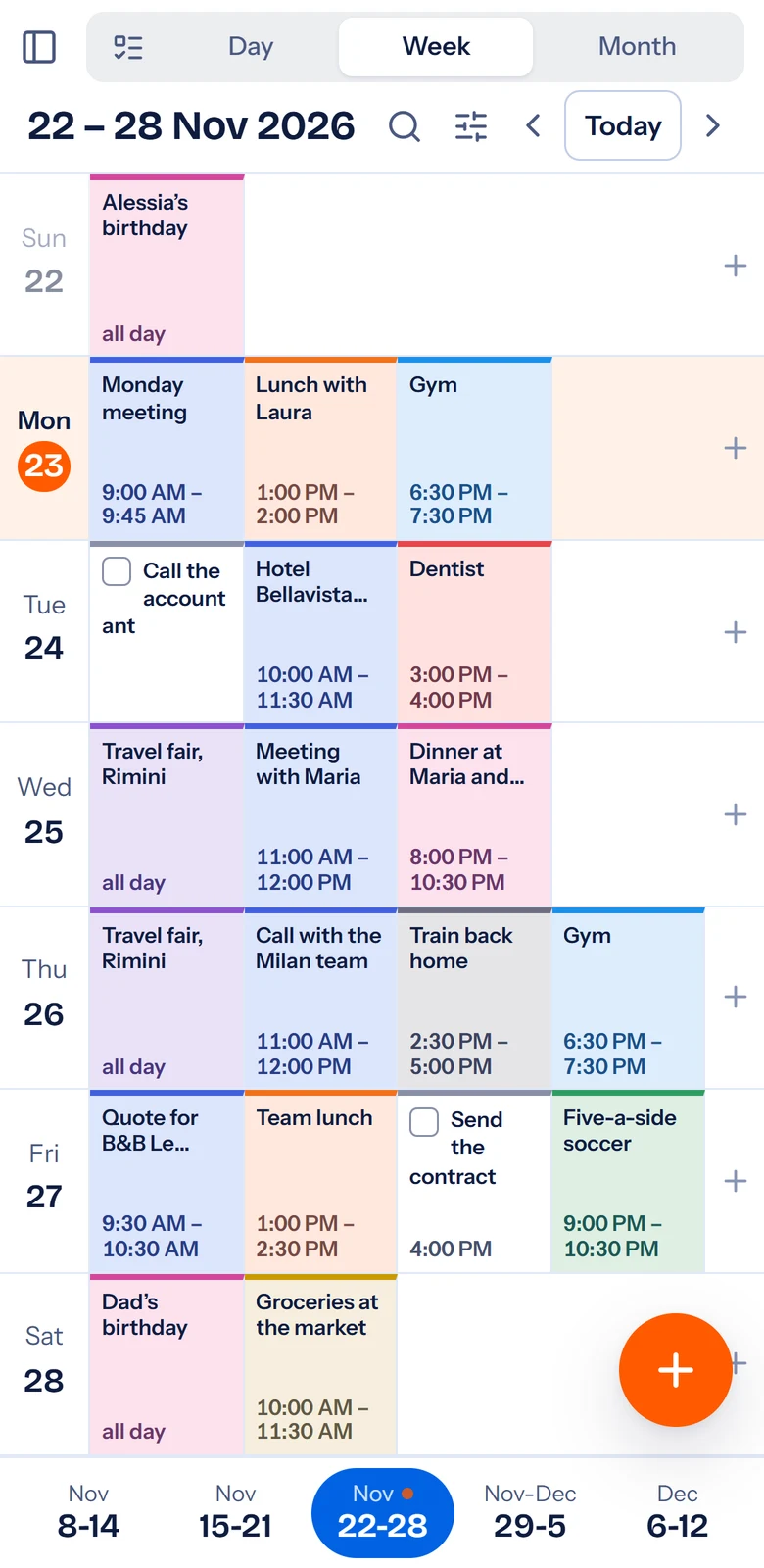
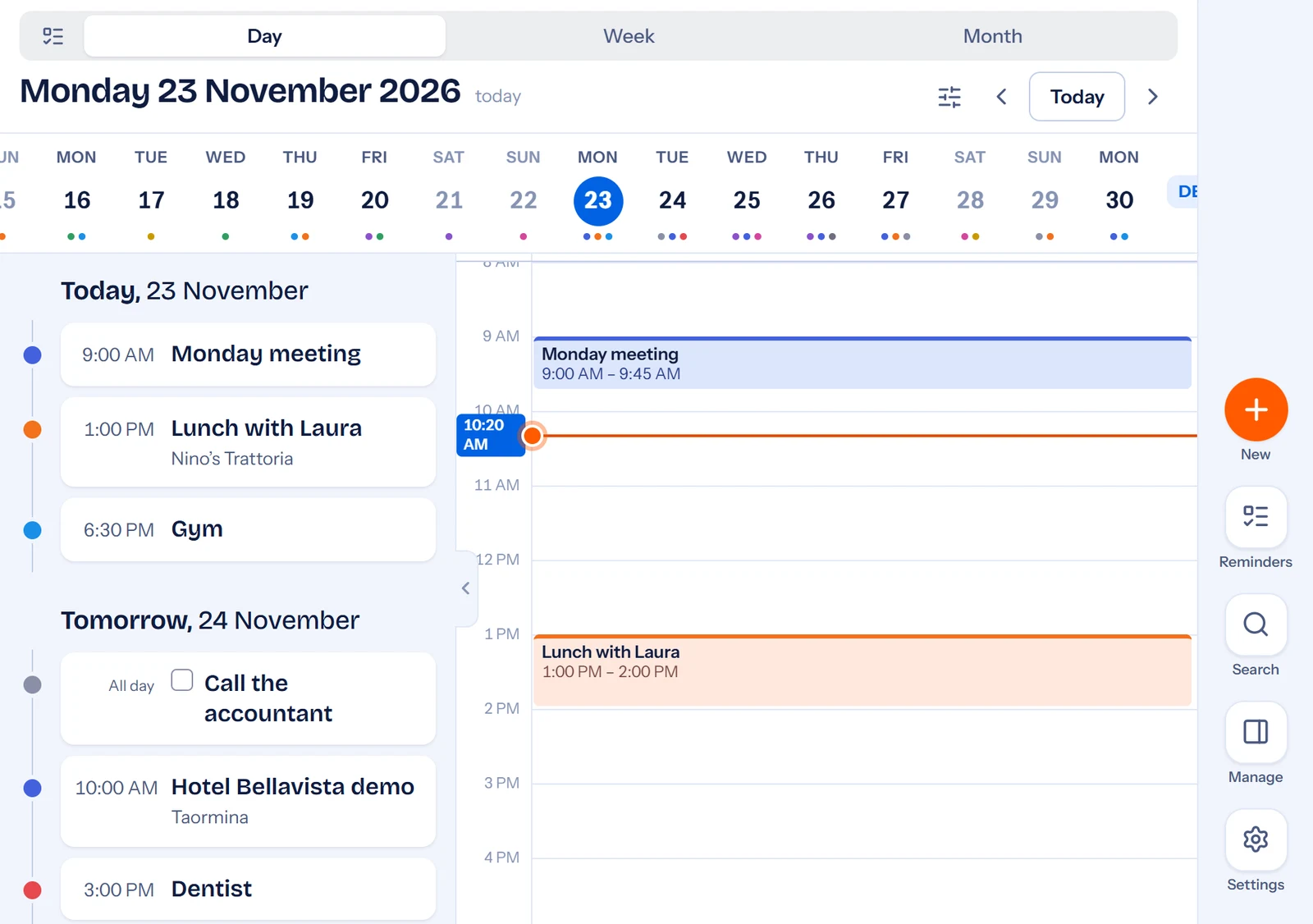
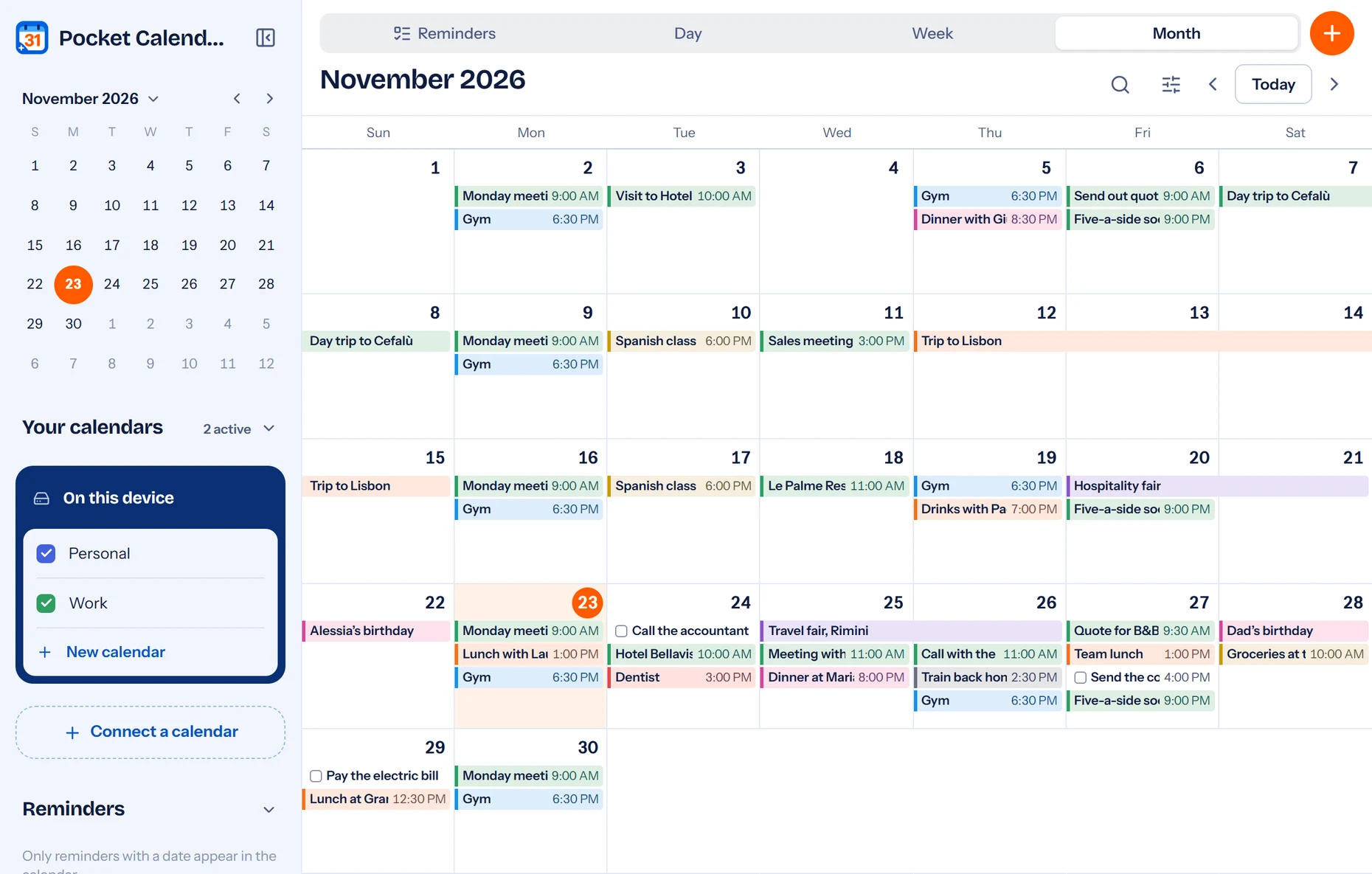
Views
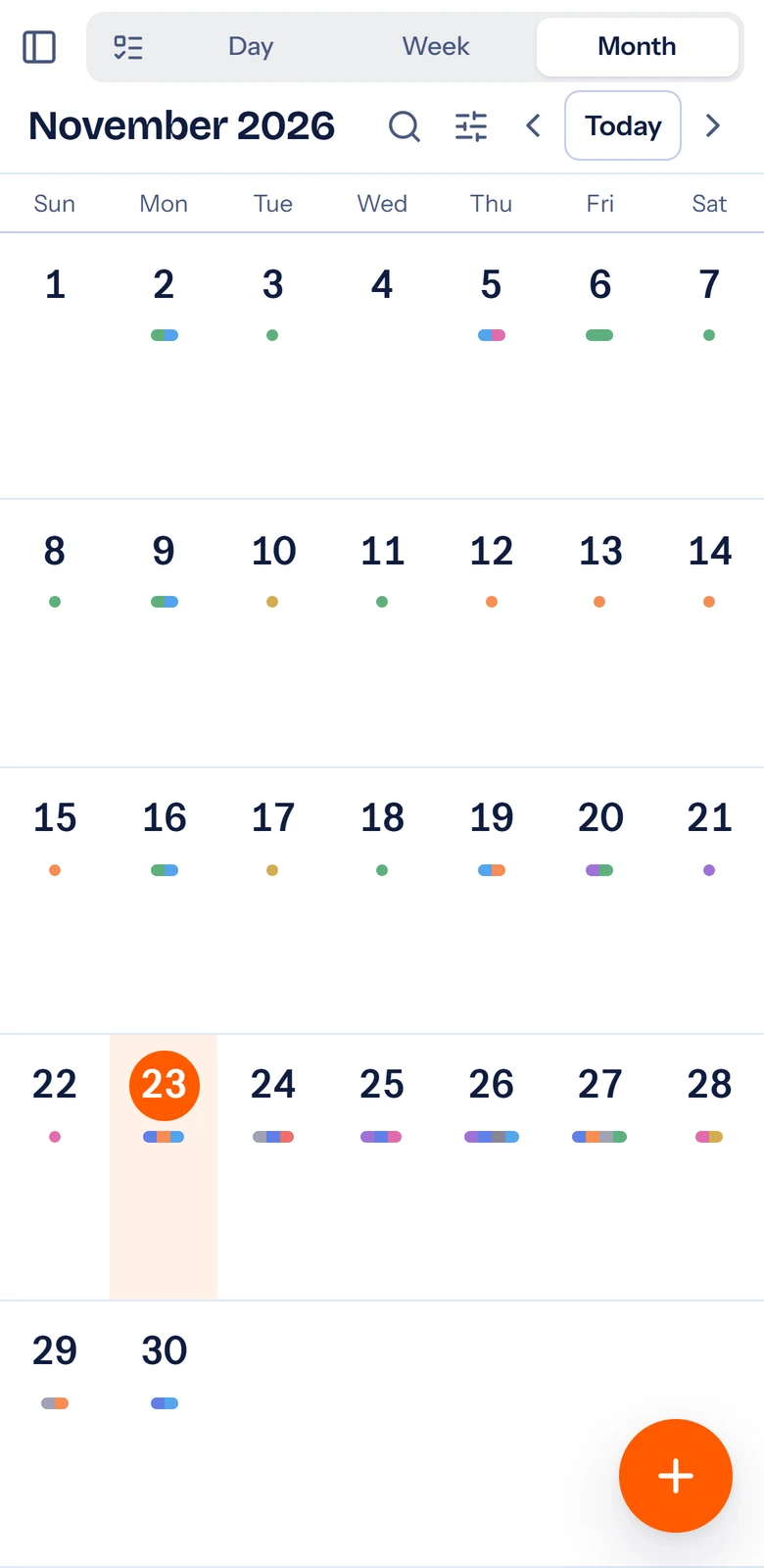
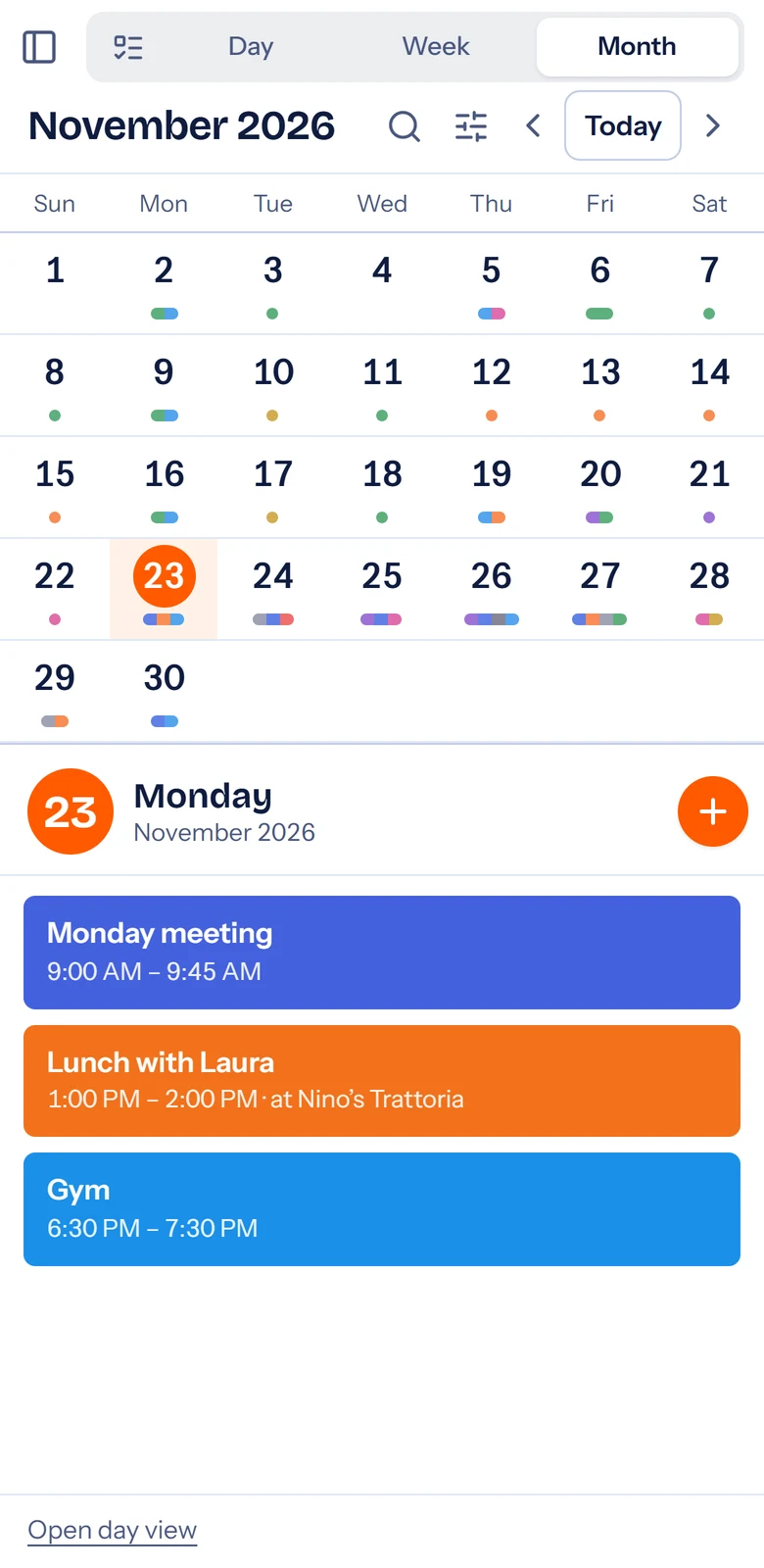
Switch between views and choose the one that works best for organizing your days.
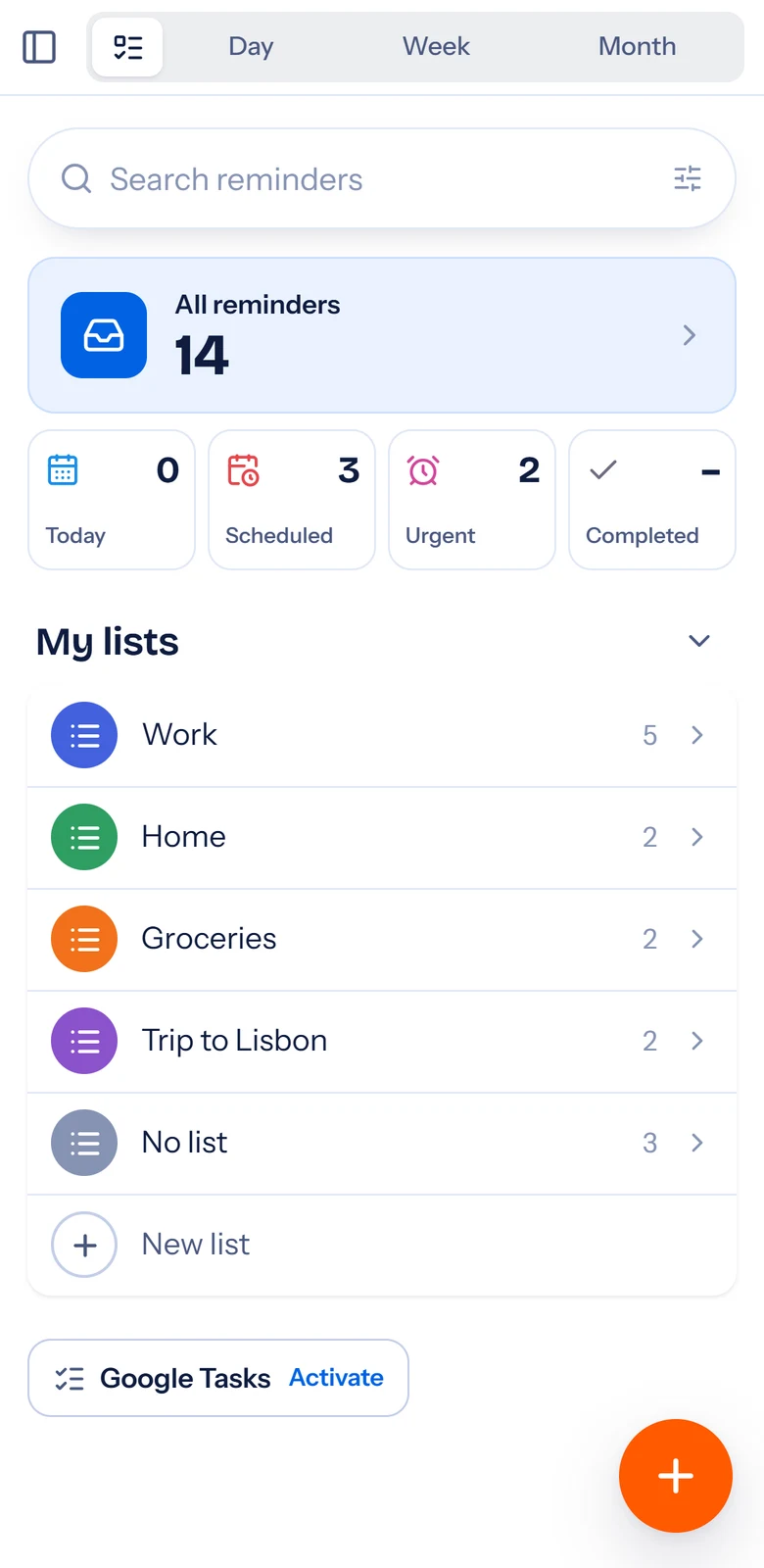
Organize your reminders into colorful lists. Add tasks, rearrange them, and check them off when you’re done.
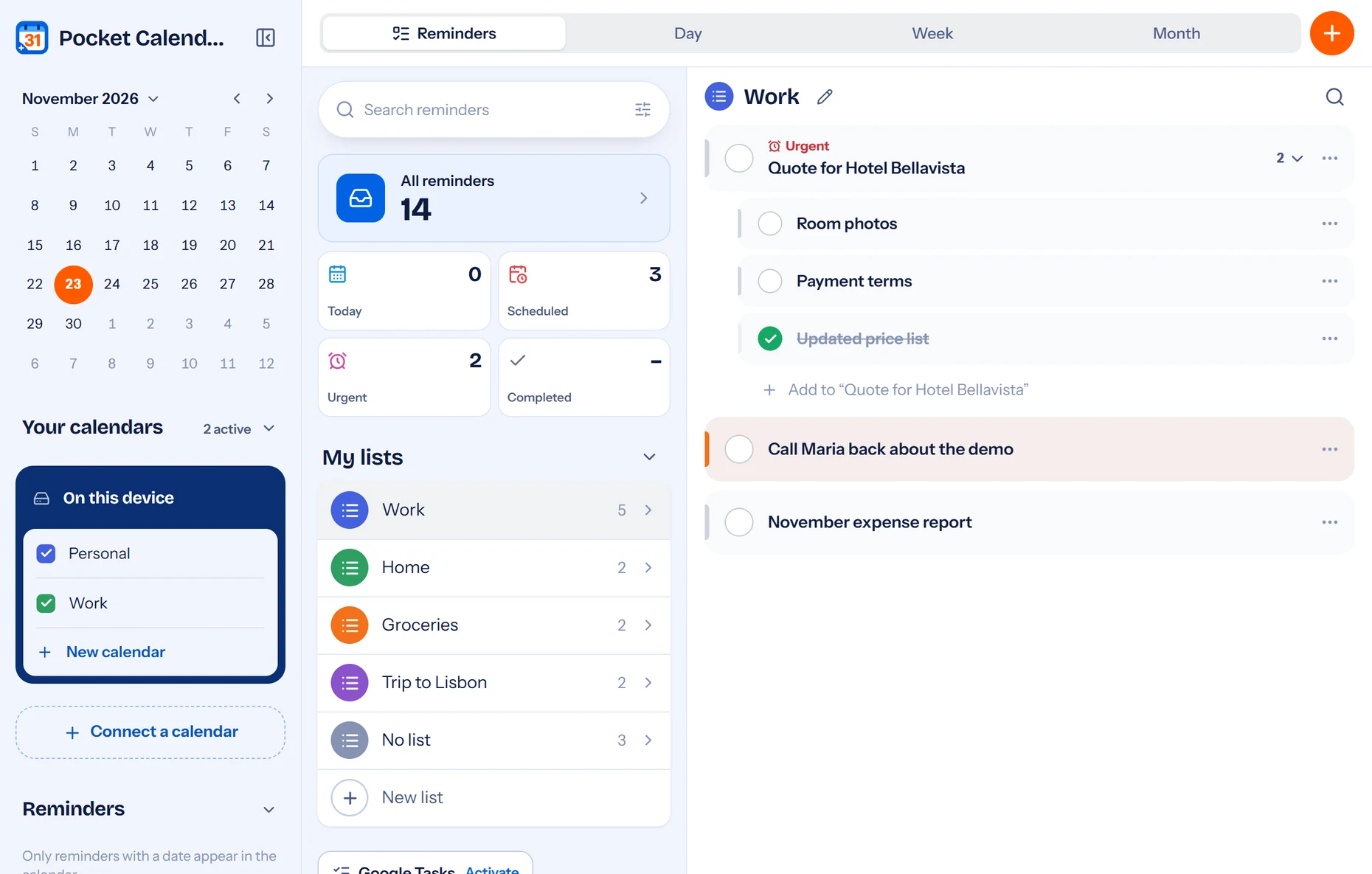
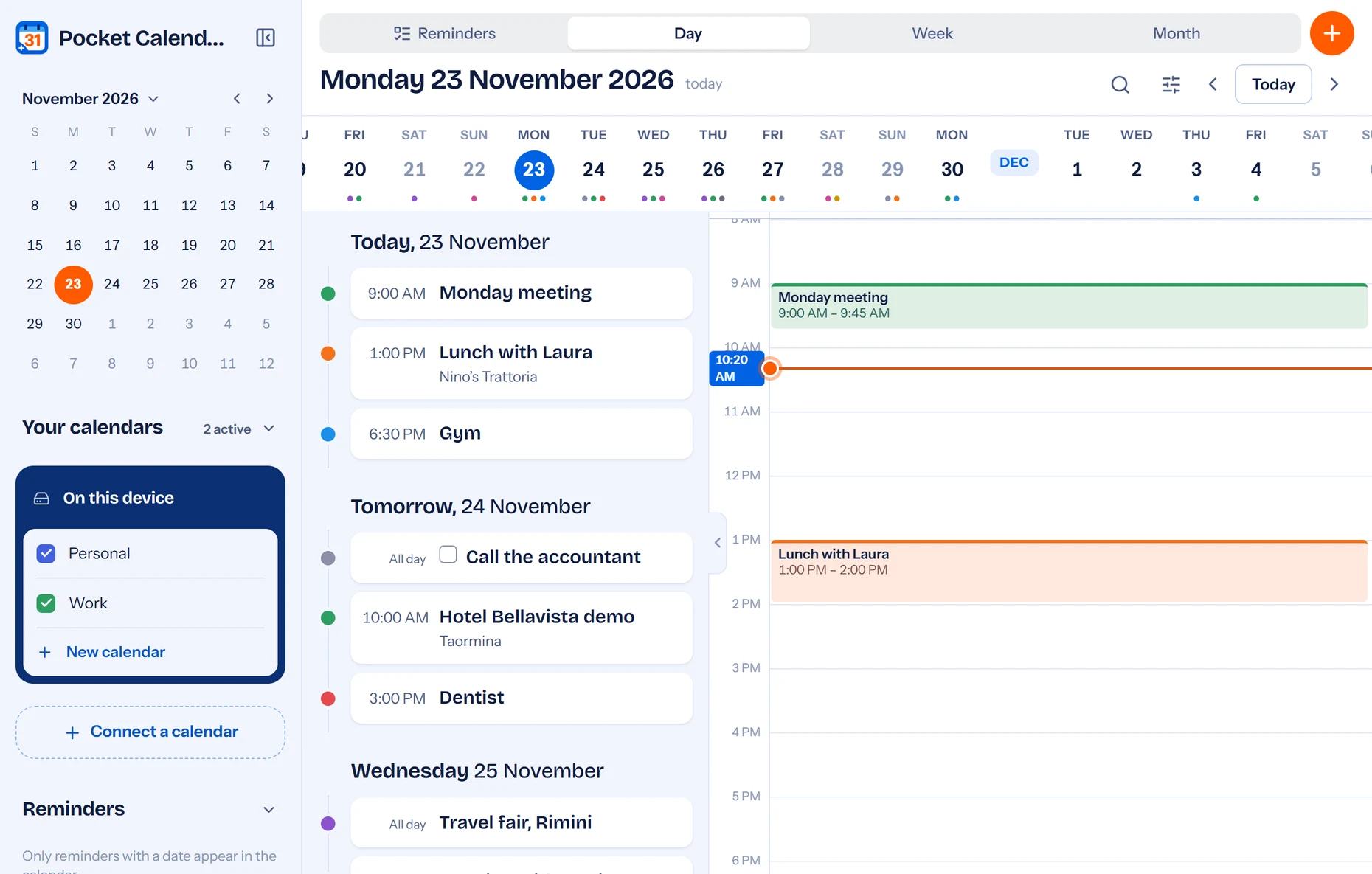
See your events by time of day and organize your time.
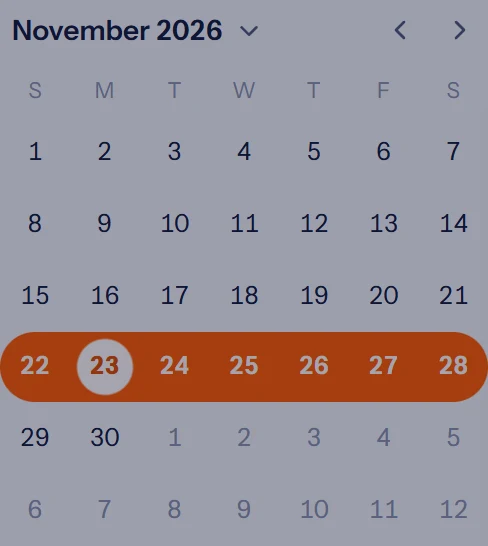
Shows one day by the hour. Select another day at the top.
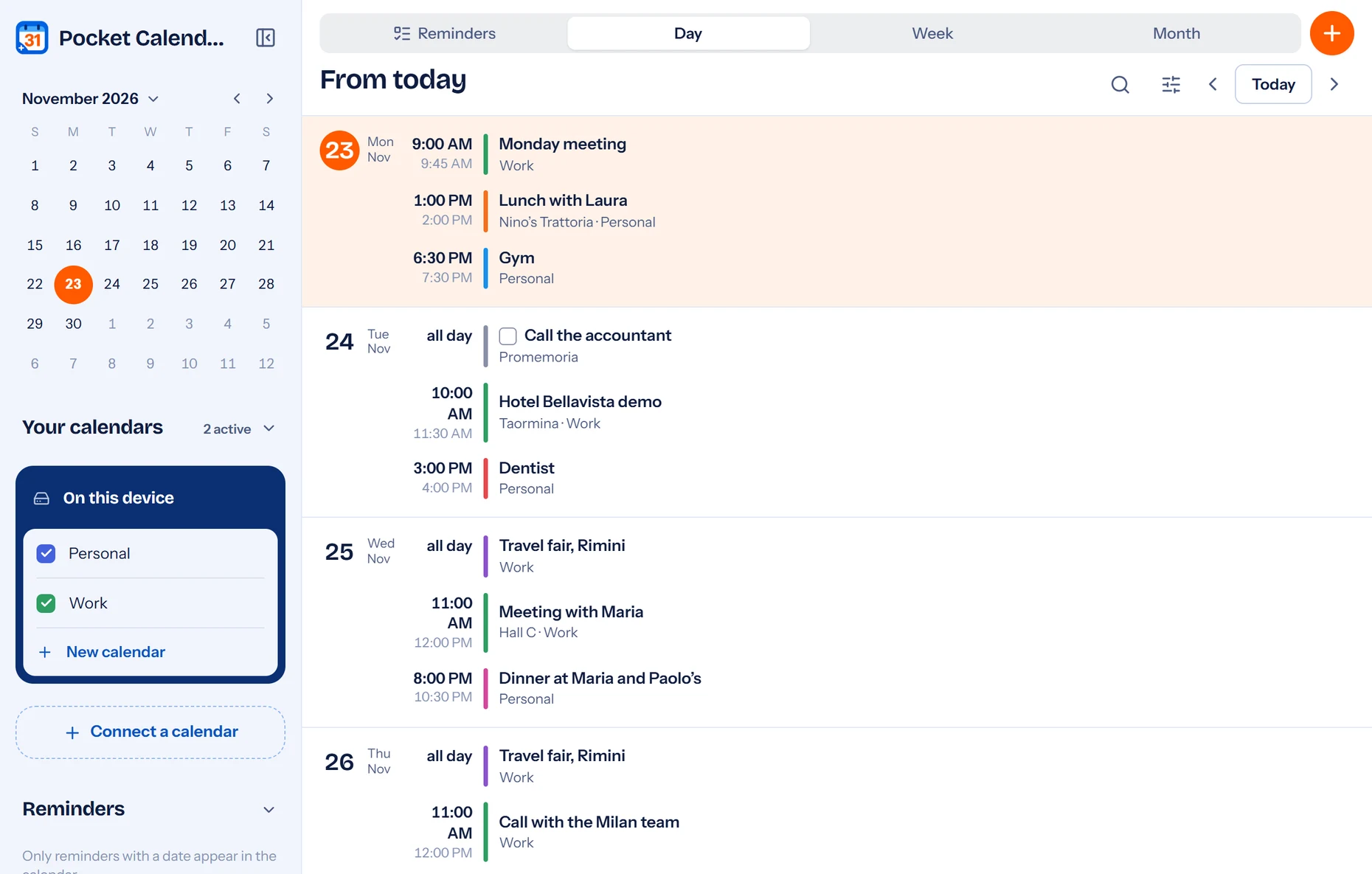
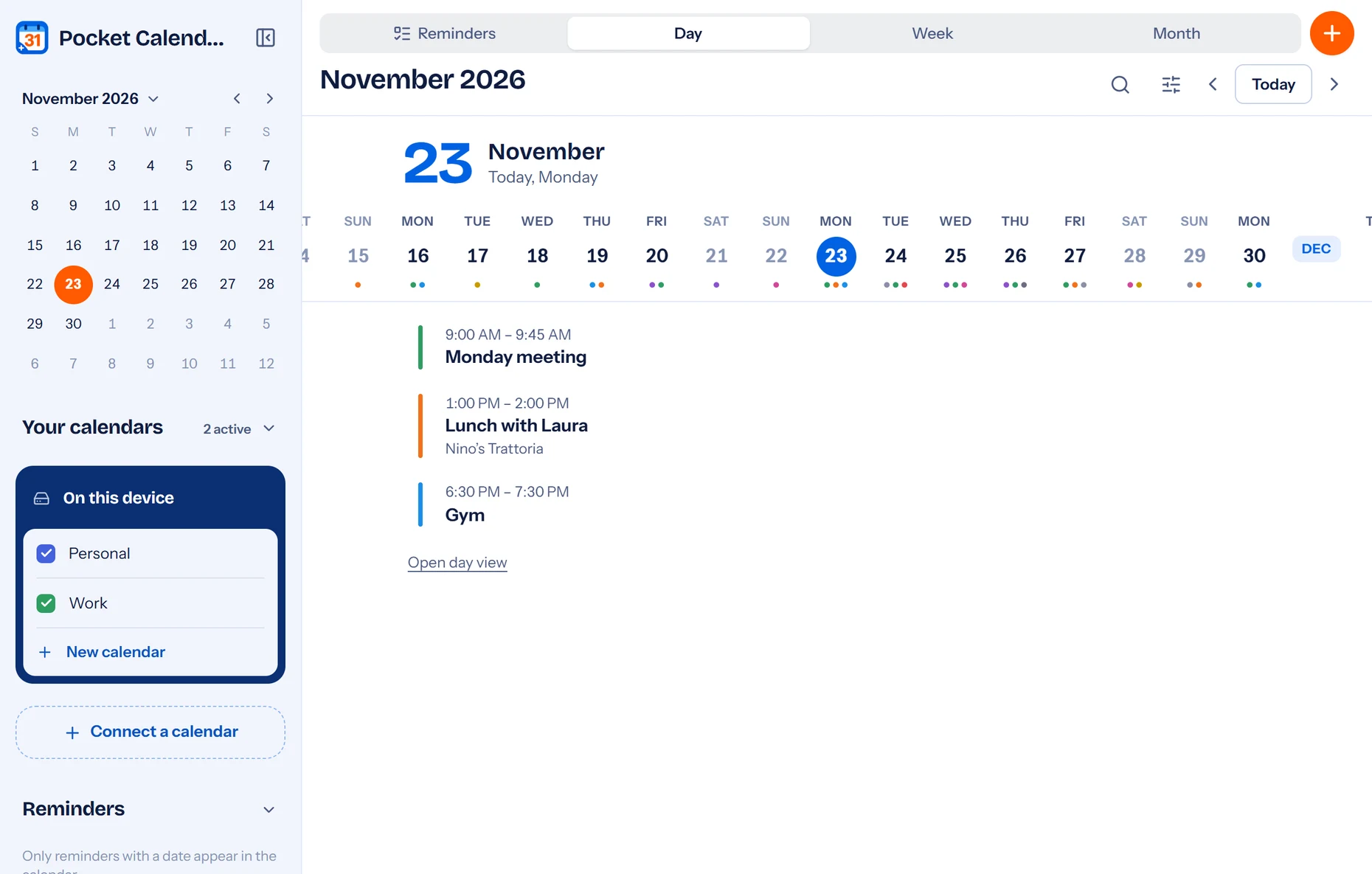
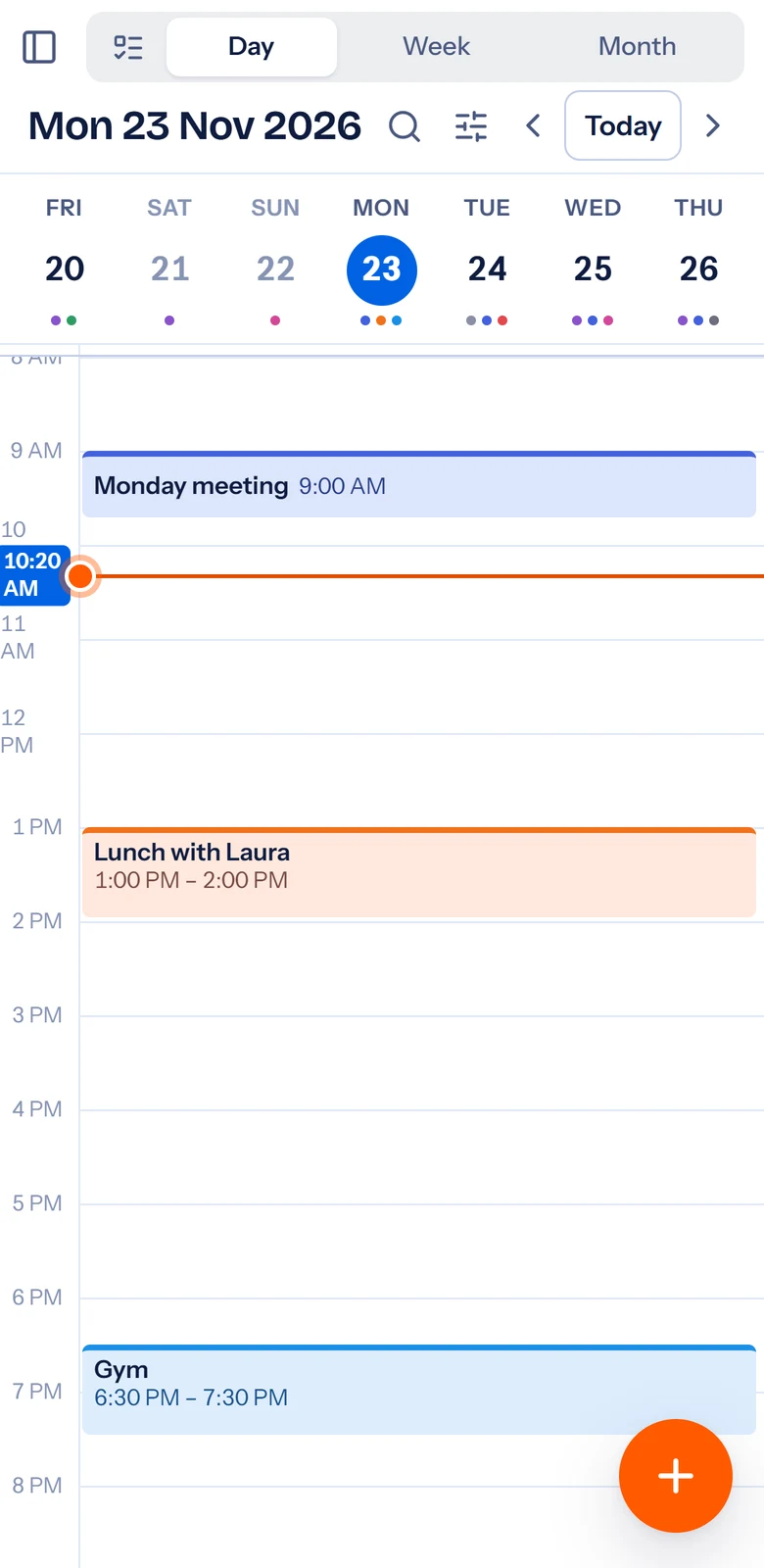
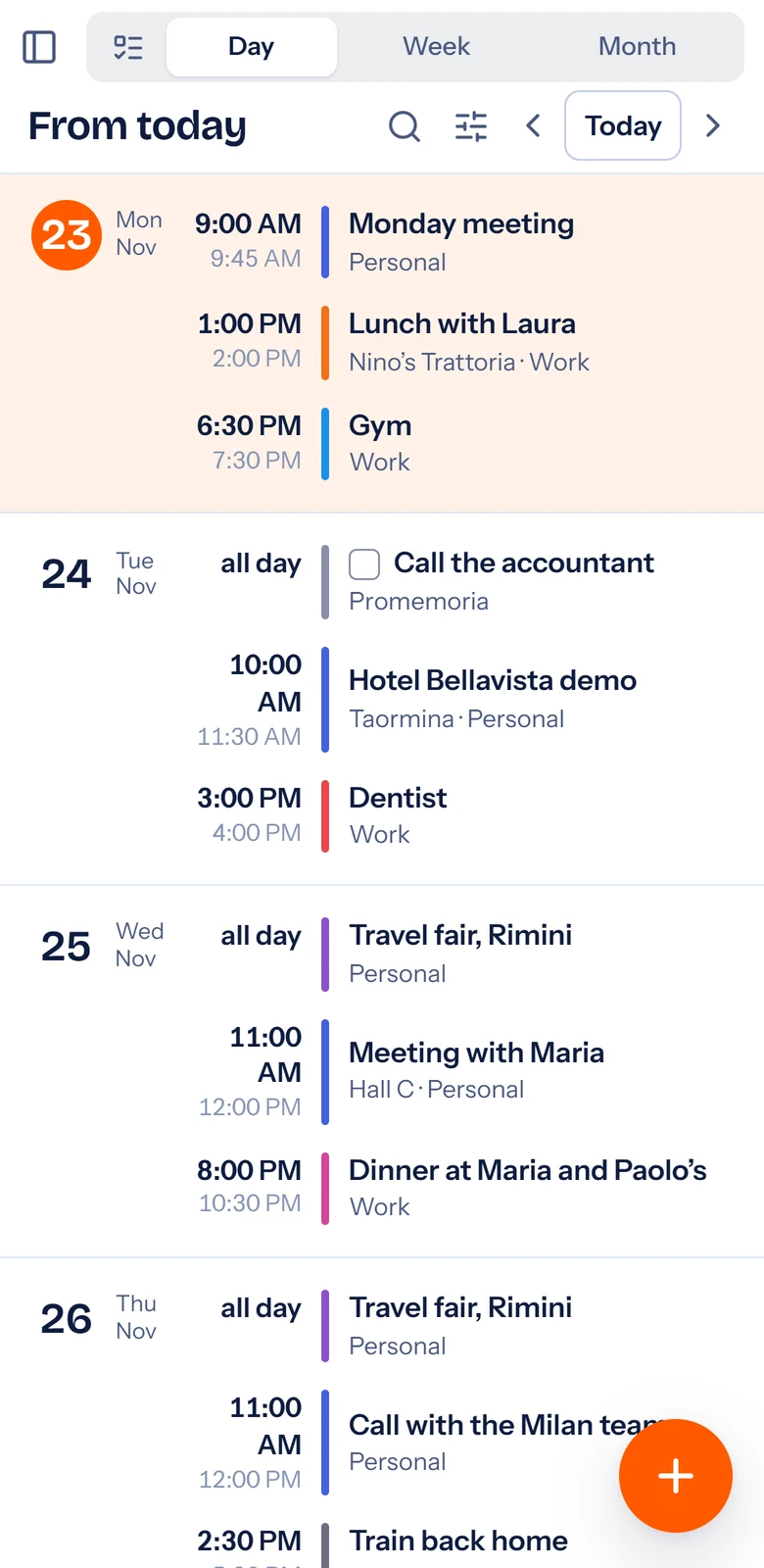
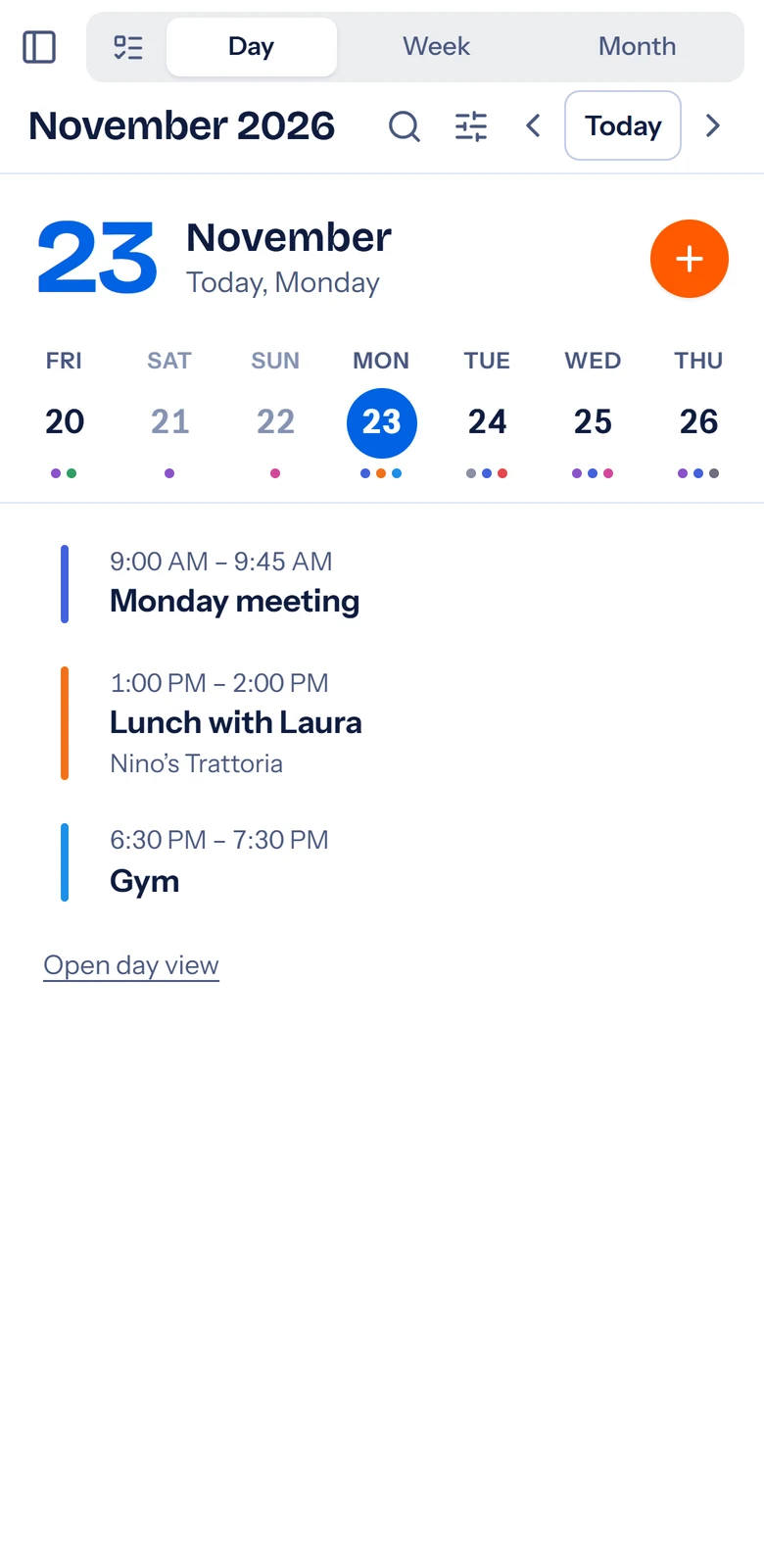
View your events like a paper planner or arrange them by time of day.
Shows the entire week.
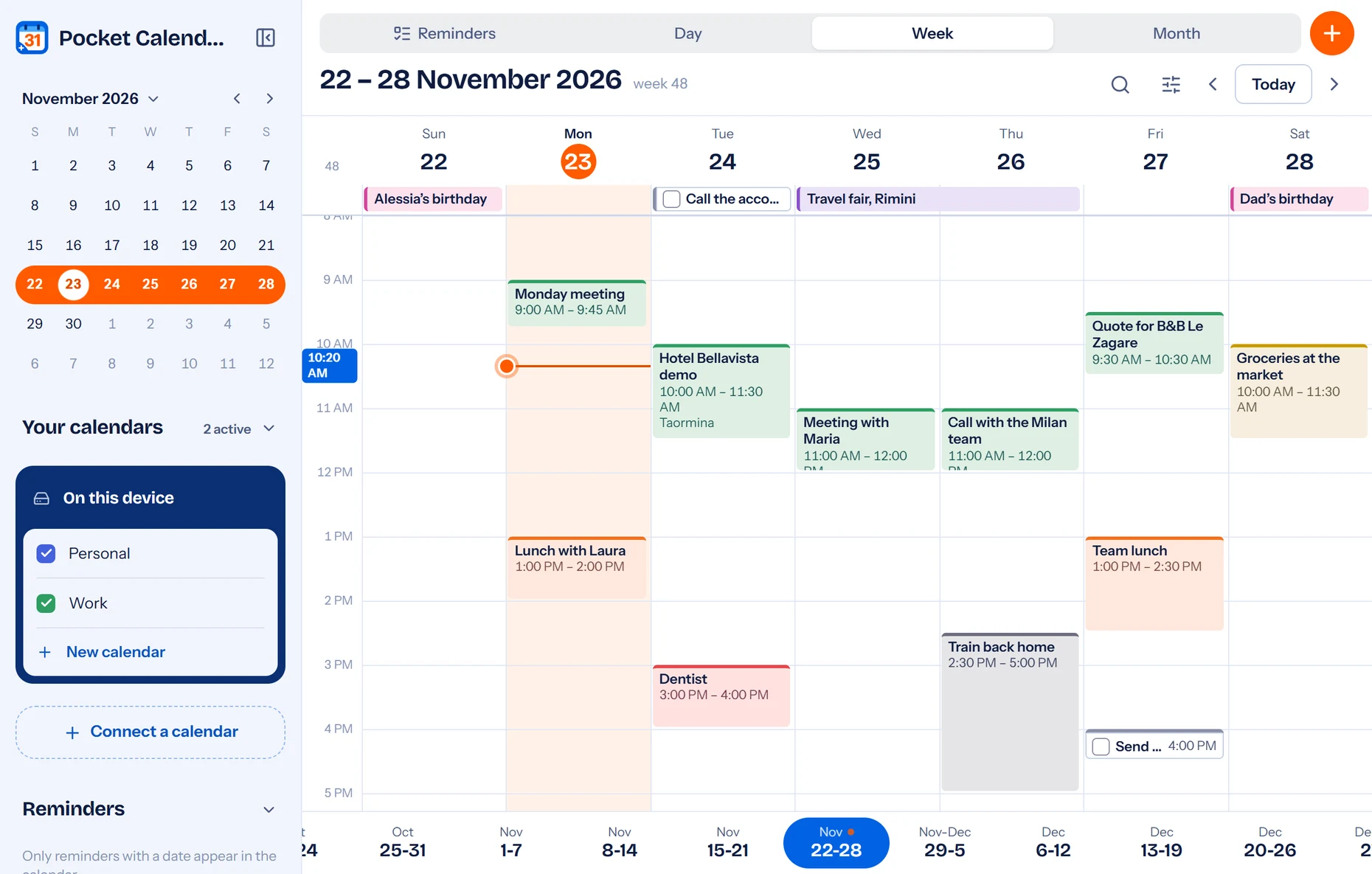
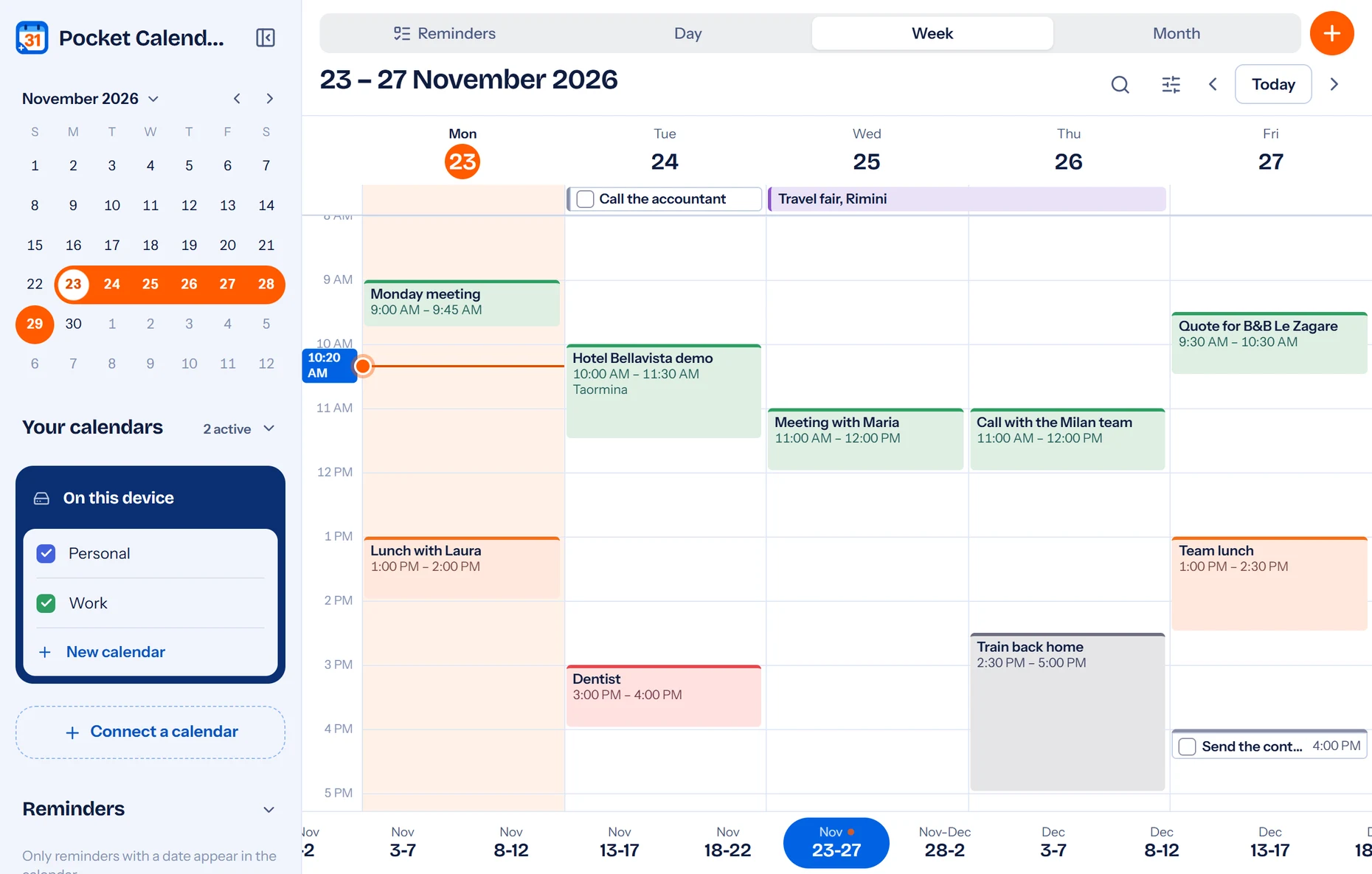
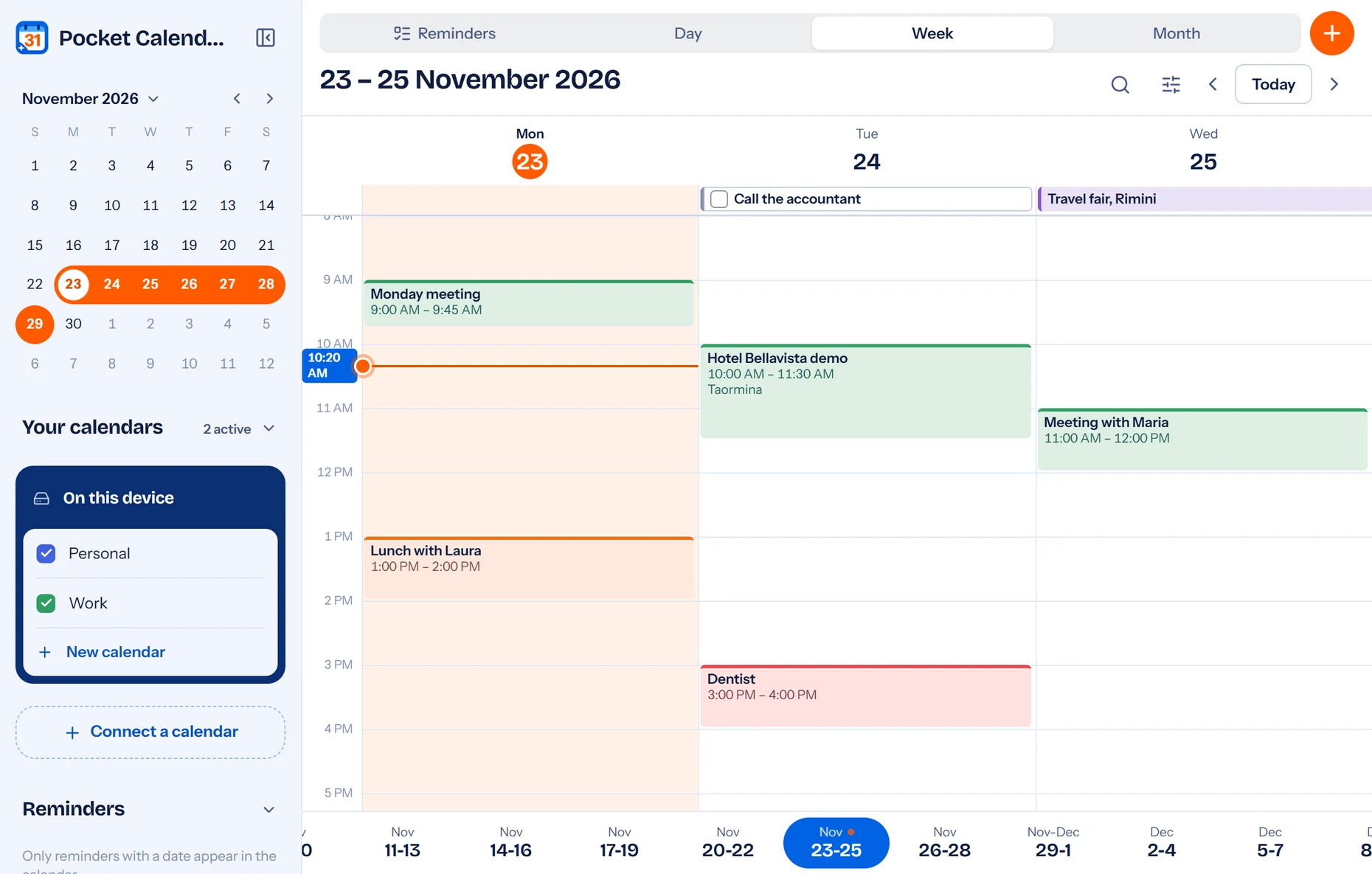
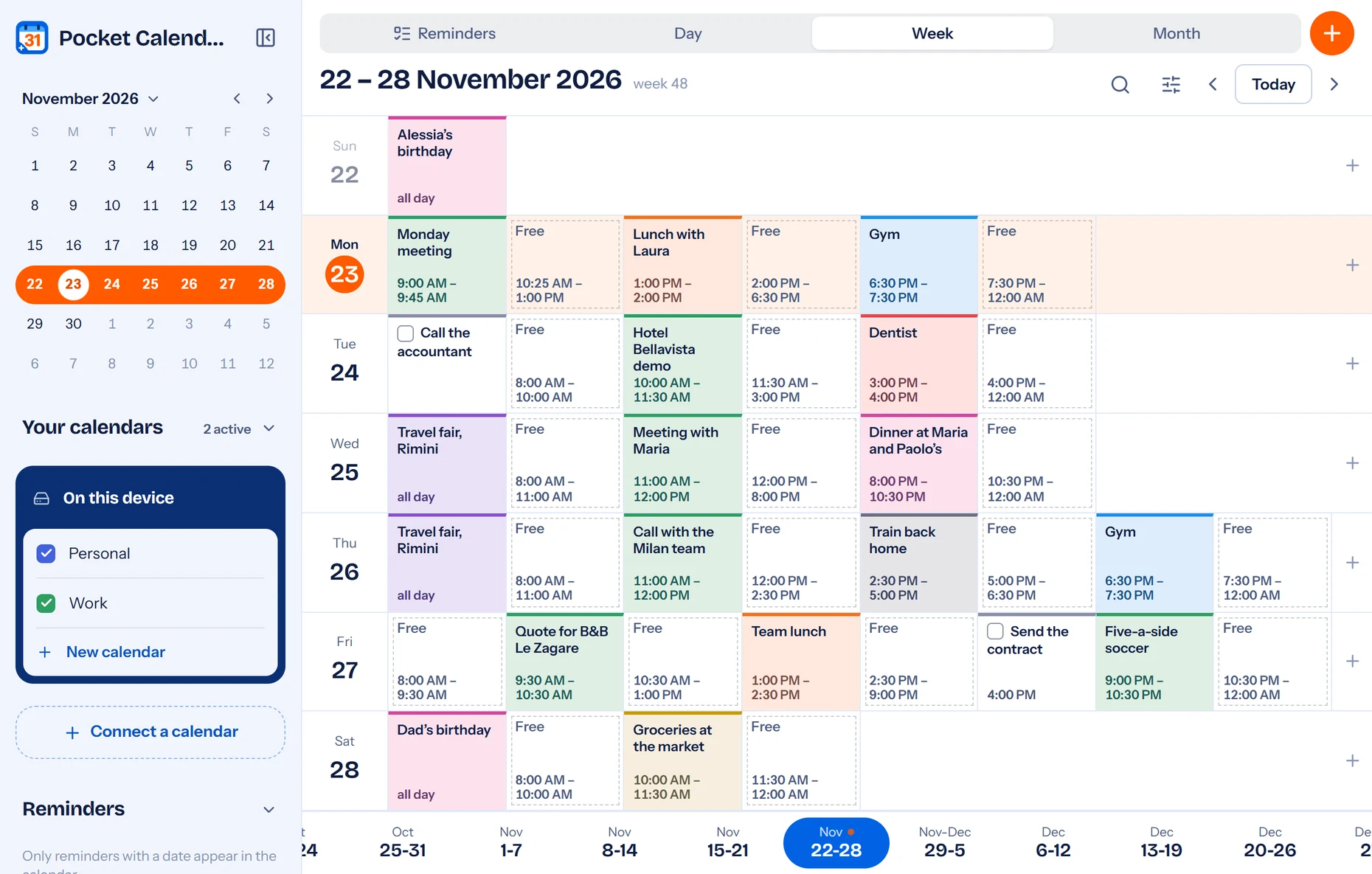
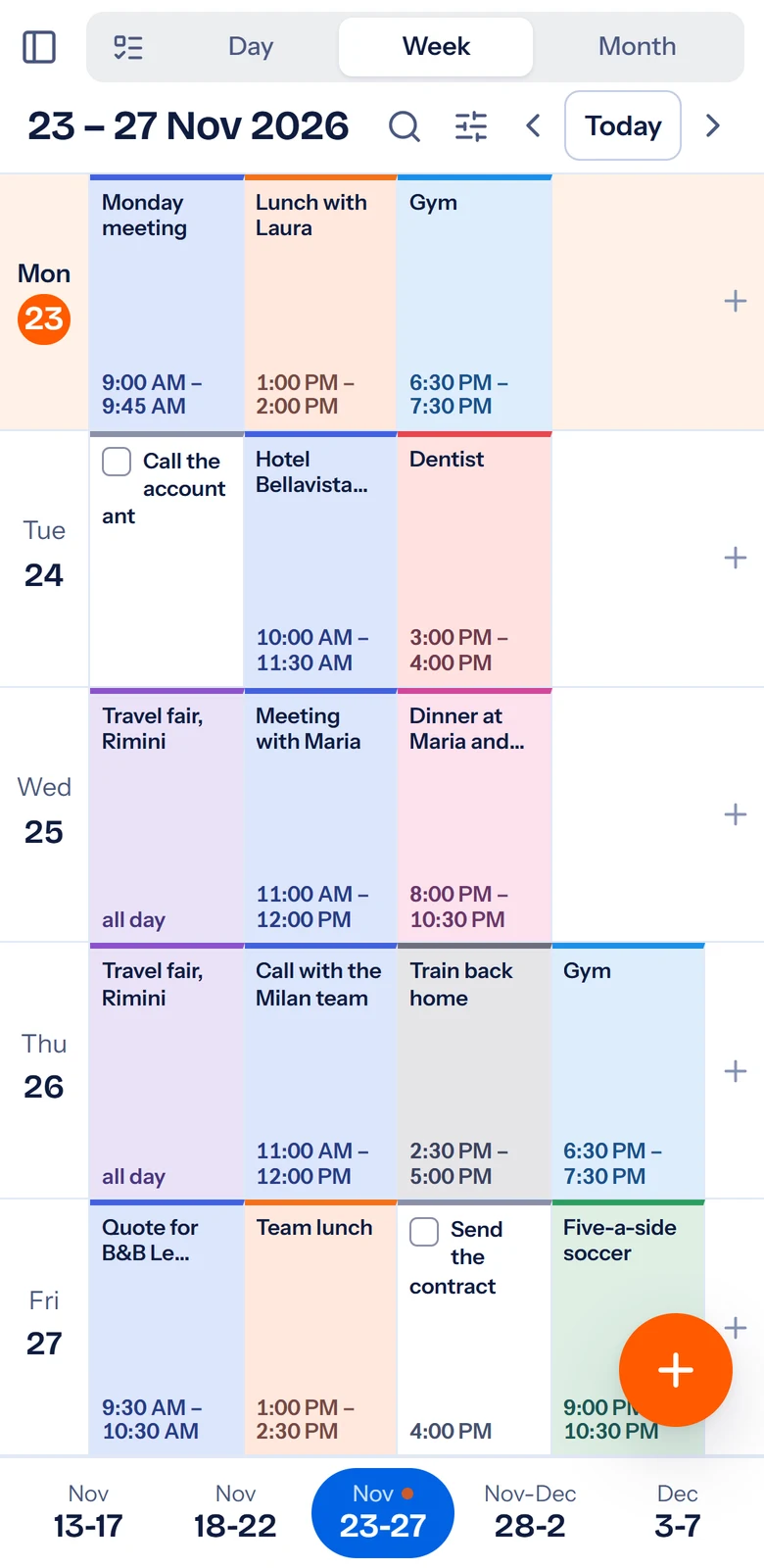
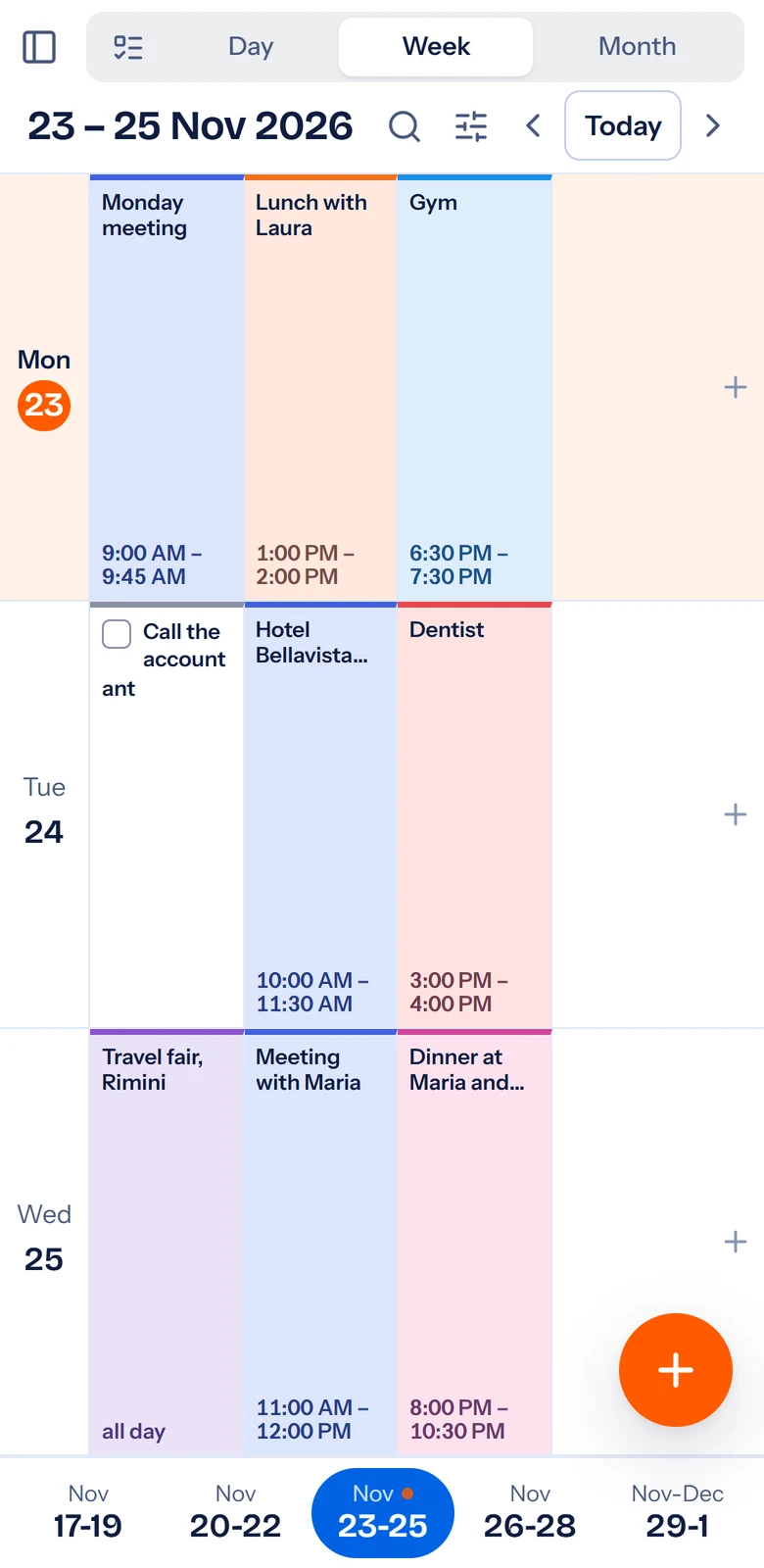
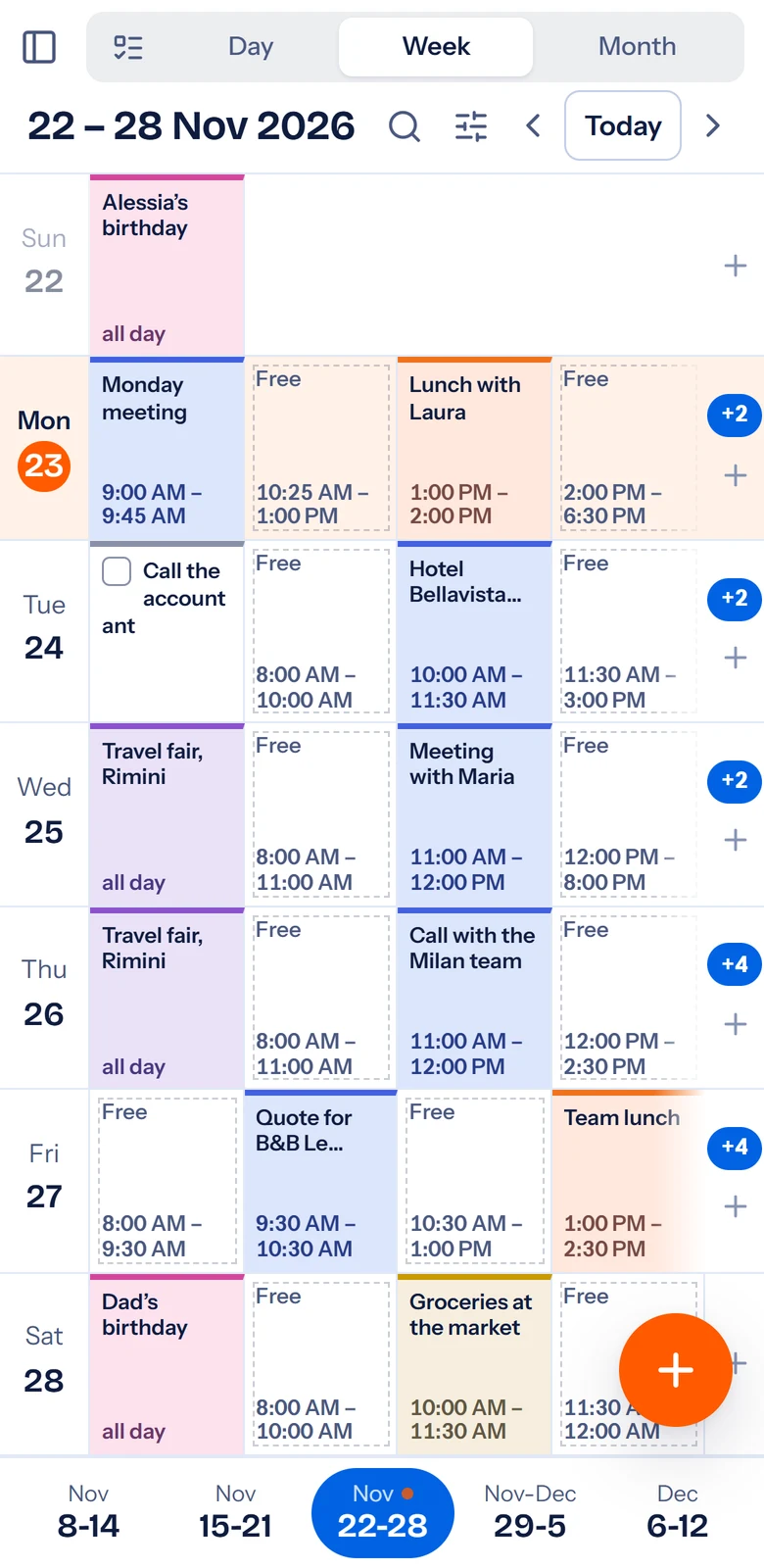
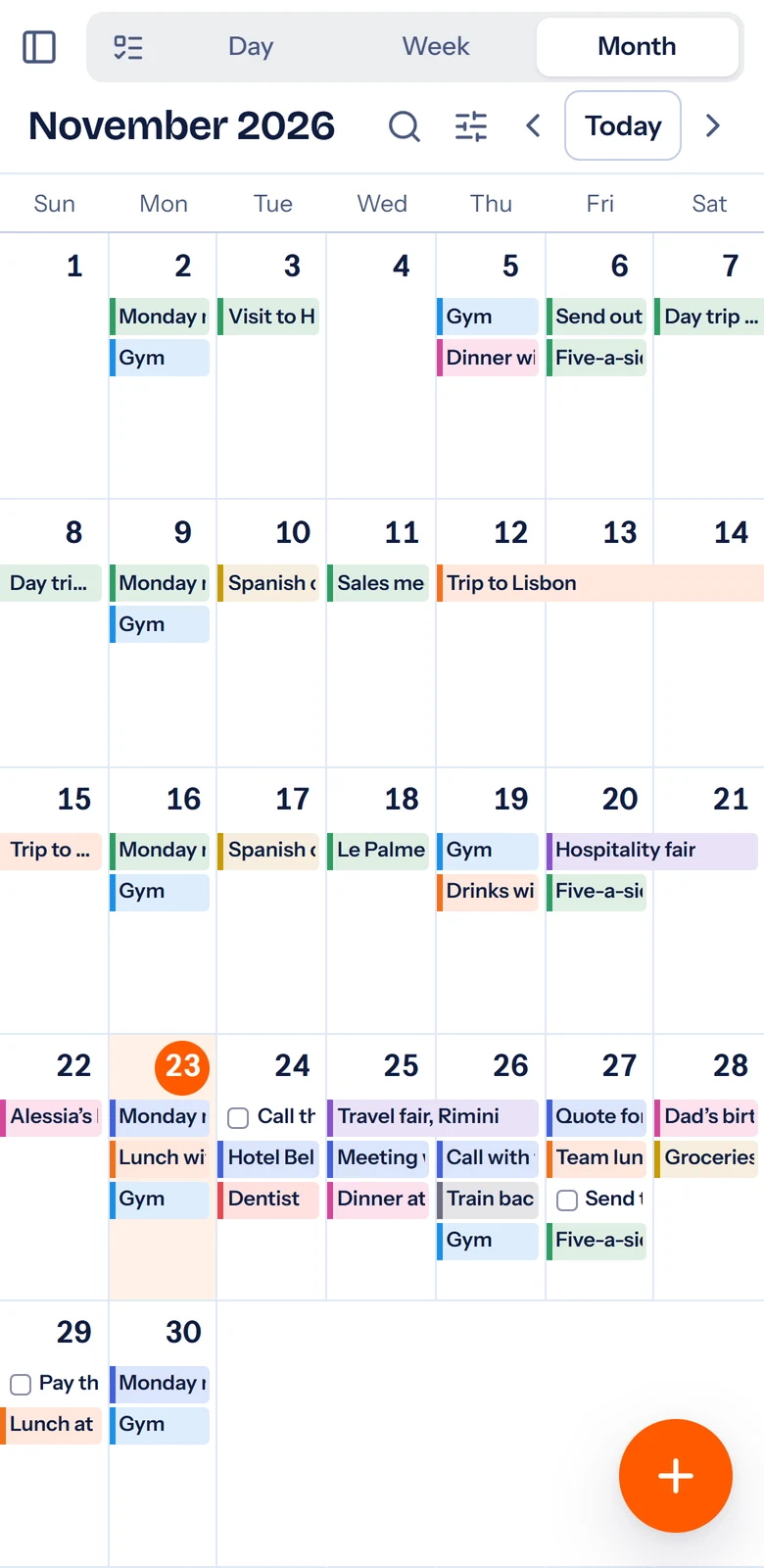
Read event titles directly on the calendar without opening each day.
Shows the titles of each day’s events.
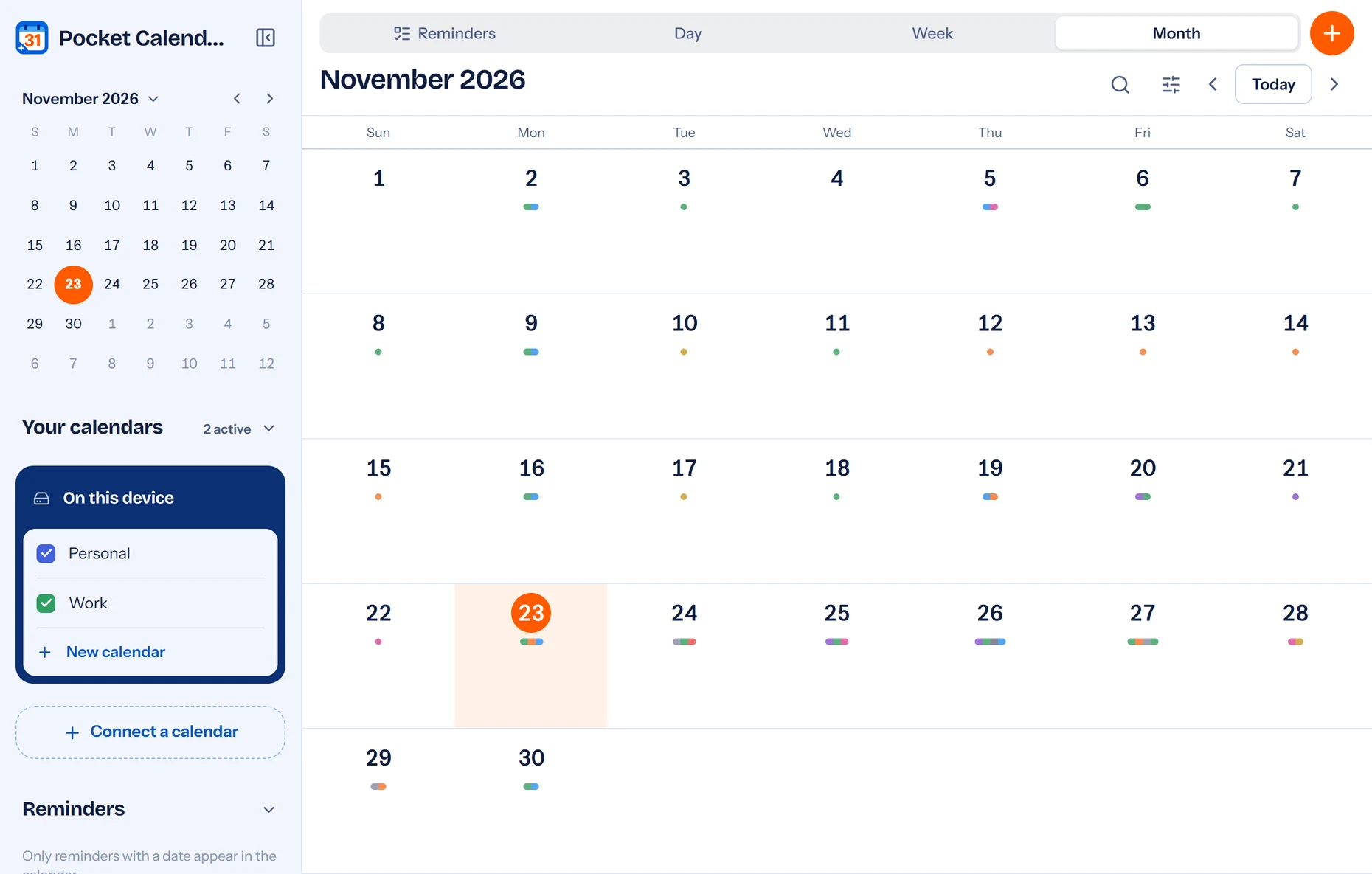
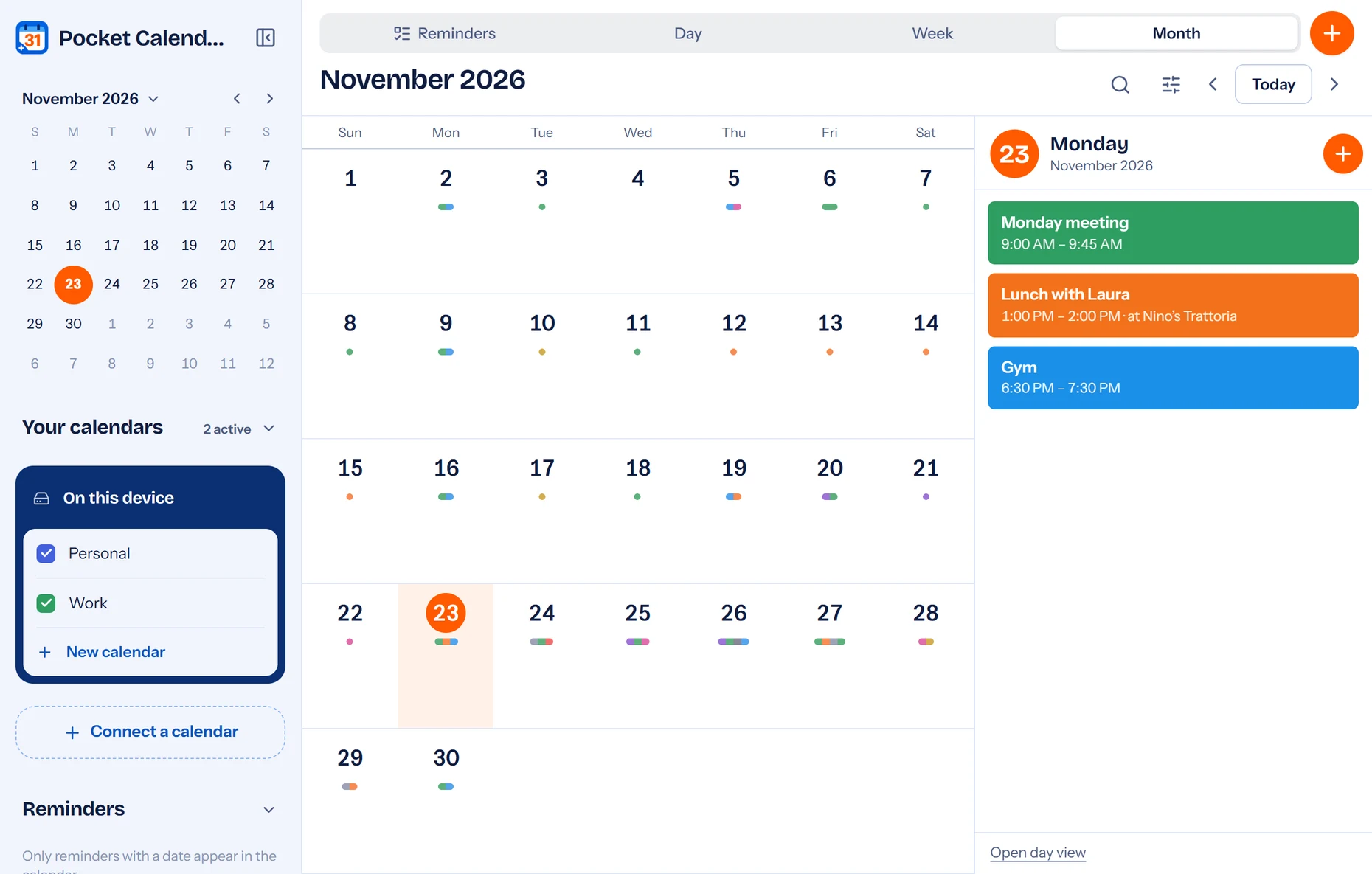
Calendars
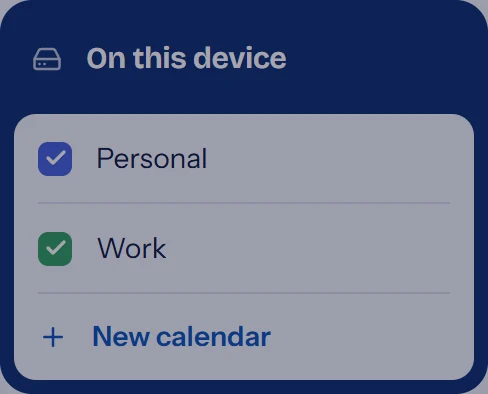
View your device calendars, connect Google Calendar, or add calendars by link, such as holidays and sports events. Outlook support is coming soon.
Reminders
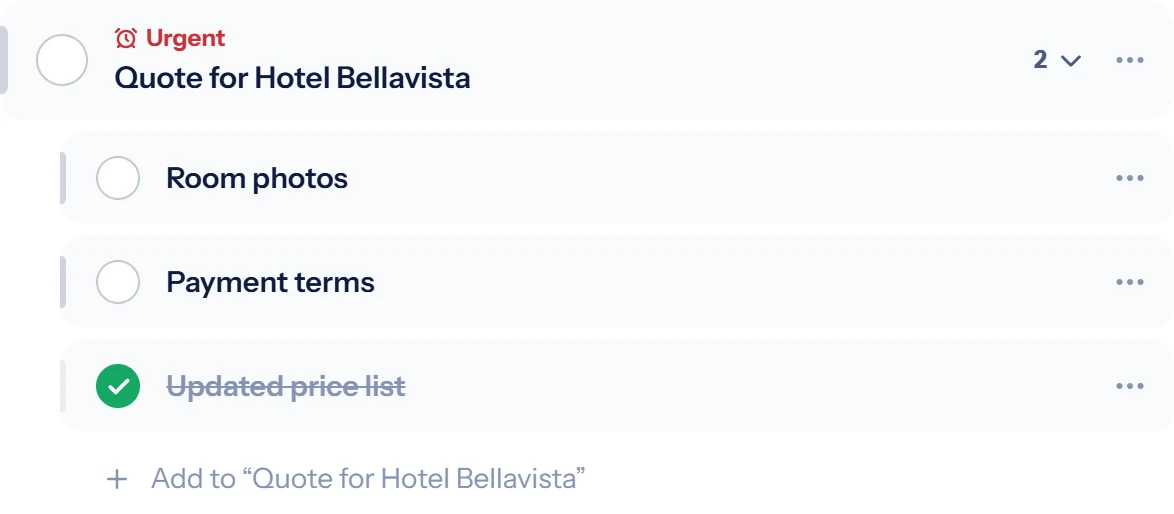
Organize reminders into lists with different names and colors. Break them into smaller tasks, rearrange them, set priorities, and add due dates when needed.
Sync reminders and tasks with Apple Reminders, including iCloud reminders, and Google Tasks. Microsoft To Do support is coming soon.
Changes sync across both apps. Each account keeps its own lists.
Keep using your calendar without an internet connection. Calendar changes sync when you’re back online.
Your data is saved on your device. Create an account to access it across all your devices.
Even the free plan includes every feature. The only difference is how many calendars you can manage.
Organize your schedule and to-dos in one app. Choose how to view your calendar and manage your days your way.
Set events to repeat daily, weekly, monthly, or yearly, with custom intervals.
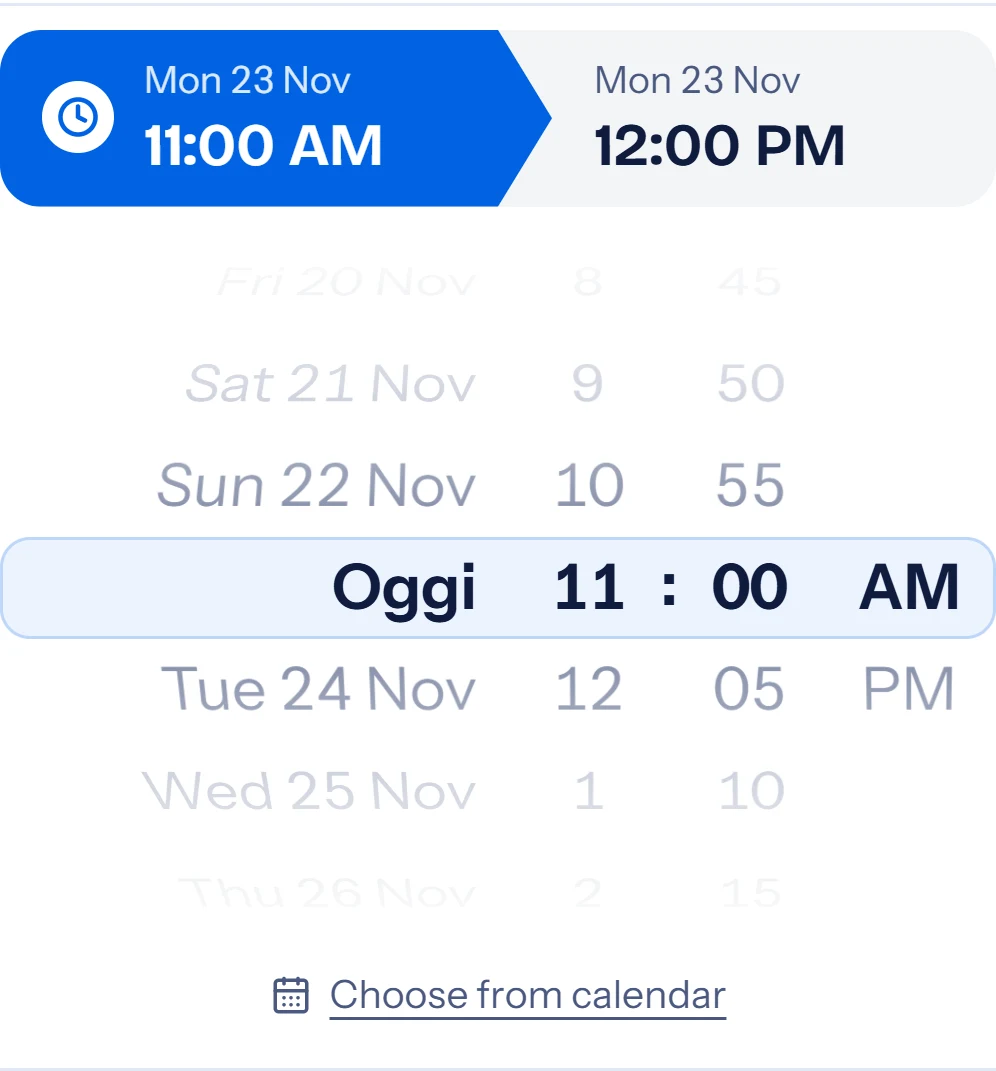
Choose how far in advance to receive a notification.
Choose a light, dark, or automatic theme. Customize colors and the first day of the week.
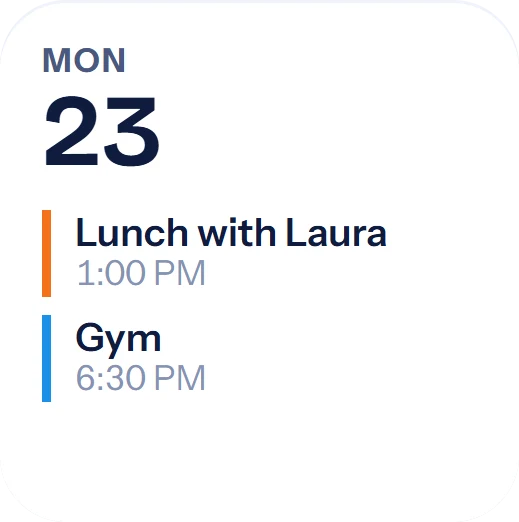
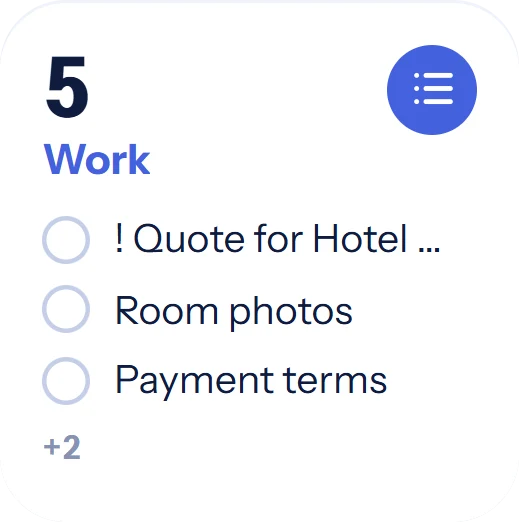
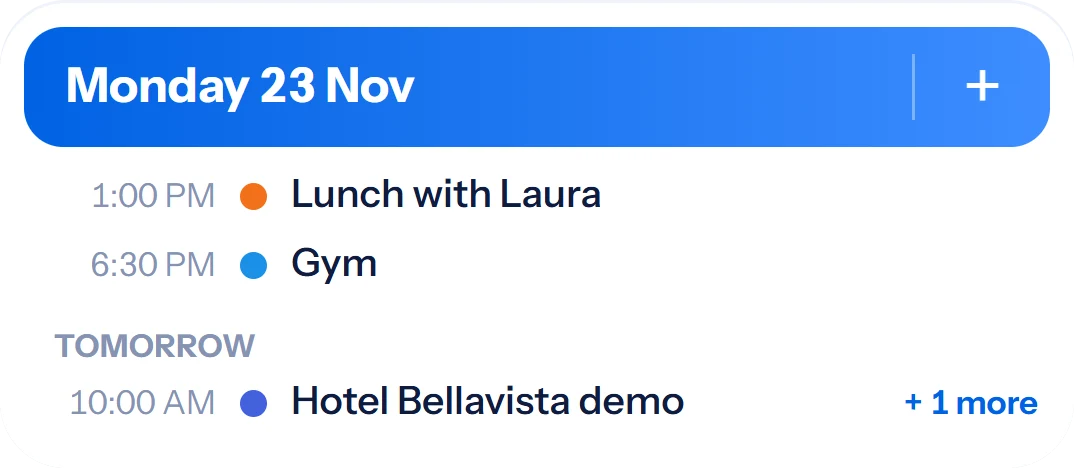
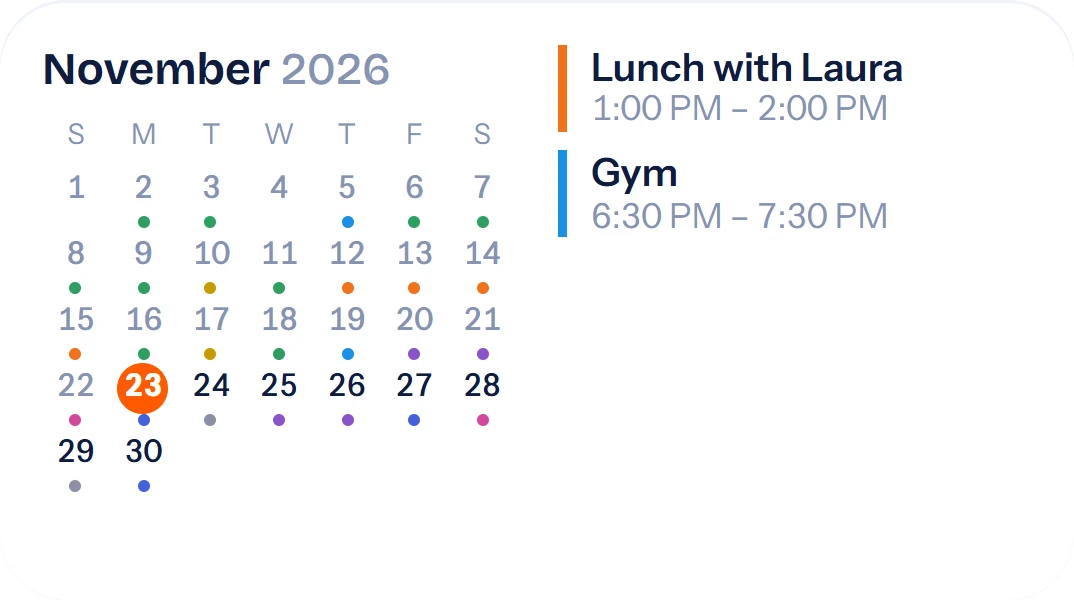
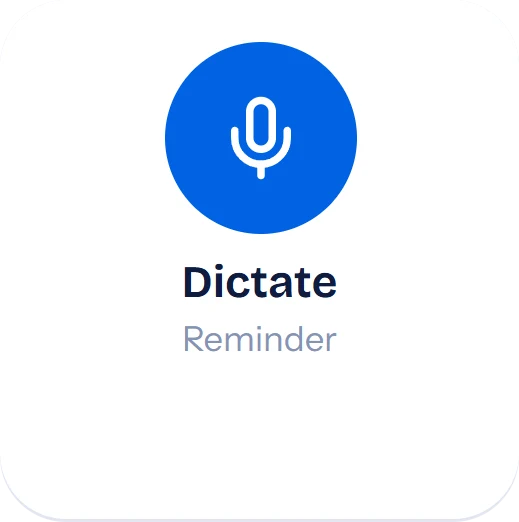
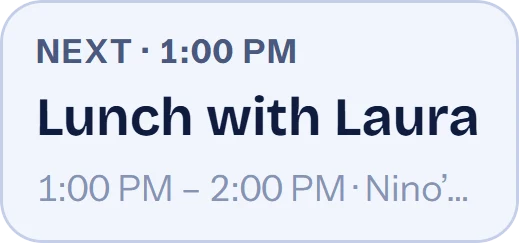
With widgets, you can check your events right from your phone’s Home Screen without opening the app. On iPhone, they’re also available on the Lock Screen.
Every plan includes all features. Start free with one calendar or choose an annual plan to manage more. Get unlimited calendars with the lifetime plan for a one-time payment of €5.99 instead of €19.99.
€0
€0.99 / year
€1.99 / year
Launch offer
€5.99 Instead of €19.99 One-time payment
Sign in with the same account to access your calendars and reminders on your phone, tablet, and computer. Sync across devices is included in the free plan, too.
Yes. The free plan includes one calendar and every feature. Connect up to 5 calendars for €0.99 per year or up to 10 for €1.99 per year. The lifetime plan lets you connect unlimited calendars, forever. Now available for a one-time payment of €5.99 instead of €19.99.
Yes. You can view and edit your events directly in Pocket Calendars. Changes sync automatically with Google Calendar in both directions.
Outlook support is coming soon. On iPhone and iPad, you’ll find your iCloud calendars among your device calendars.
Yes. You can view and edit your events without an internet connection. Changes to Google calendars sync when you’re back online.
Your data is saved on your device. If you create an account, you can access your calendars and reminders on your other devices, too. Google calendars sync directly with Google Calendar.
Yes. You can create events that repeat daily, weekly, monthly, or yearly. You can also set custom intervals, such as every two weeks.
Yes. You can sync them with Google Tasks and, from the iPhone app, with Apple Reminders, including iCloud reminders. Changes sync across both apps. Google Tasks keeps the due date, but not the time. Microsoft To Do support is coming soon.
Yes. Widgets come in different sizes and let you view events and reminders on your phone’s Home Screen. On iPhone, Lock Screen widgets are also available. You can also use the microphone widget to dictate a reminder or an event.
The iPhone app will be available on the App Store. There is no release date yet.
Choose how to view your events, organize your reminders, and customize your calendars. Every feature is included, even in the free plan.
Coming soon to the App Store.